ImageRestoreAI vs PicWish: Damage Repair and Detail Refinement
Updated
Compare PicWish restoration modes and text refinement with ImageRestoreAI previews, and learn what to inspect beyond a cleaner or larger image.
Upload Your Photo To Restore NOW – FREE Preview
Drag & drop or click to select • JPG, PNG, WebP, HEIC
FREE Preview • Review your result before purchasing
PicWish is a relevant option if you want to choose a damage level and refine a restoration with text instructions. ImageRestoreAI offers a focused browser preview followed by a paid-download decision. Both should be judged on the photograph you care about, especially where damage crosses a face or meaningful detail.
Publisher disclosure: This comparison is written and published by the ImageRestoreAI team, which operates one of the services discussed. It is an editorial comparison of documented features and workflow fit, not an independent review or hands-on comparative test. Official sources were checked on September 16, 2026; recommendations are our editorial judgment.
PicWish offers dedicated old-photo repair
PicWish's official restoration page describes Mild, Moderate and Severe damage levels, followed by optional text-based detail refinement. It also advertises scratch and crease removal, face enhancement, colorization and enlargement. The page does not identify a specific underlying model version for this workflow, so we do not assign one. PicWish old-photo restoration, checked September 16, 2026.
This is more than a background-removal tool. If you want to try a different damage setting or explain a detail that needs attention, its documented workflow may suit you. Those controls do not establish that any setting is more faithful, or that severe damage can always be recovered.
ImageRestoreAI provides a free restoration preview and a paid download. Its practical benefit is a direct restoration candidate to review. Its output can also reconstruct faces, clothing and borders; a simpler workflow should not be equated with a stronger preservation guarantee.
Match the repair to the visible damage
Begin by naming the problem: a fine scratch across a background, a broad crease through clothing, or a missing part of a face. A severity label describes the task broadly. It does not tell you how much of the original information remains in a particular eye, hand or printed date.
When trying an available setting, compare its effect on both damaged and intact areas. A result that removes a crack but changes undamaged facial features may not be the version you want. If a later text request improves one region, review the whole image again before accepting it.
Inspect fabric and hands as carefully as faces
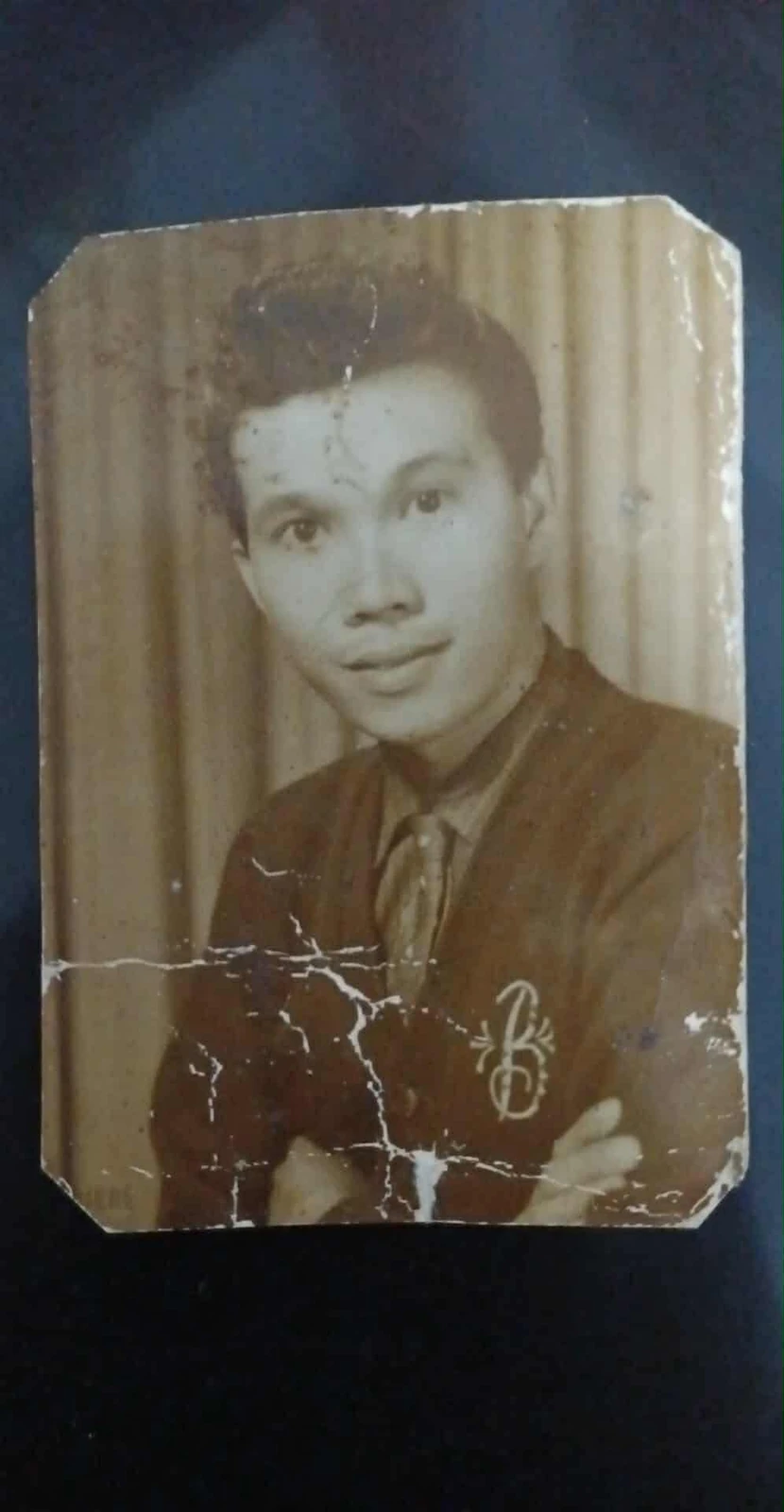
Original scan
AI restoration
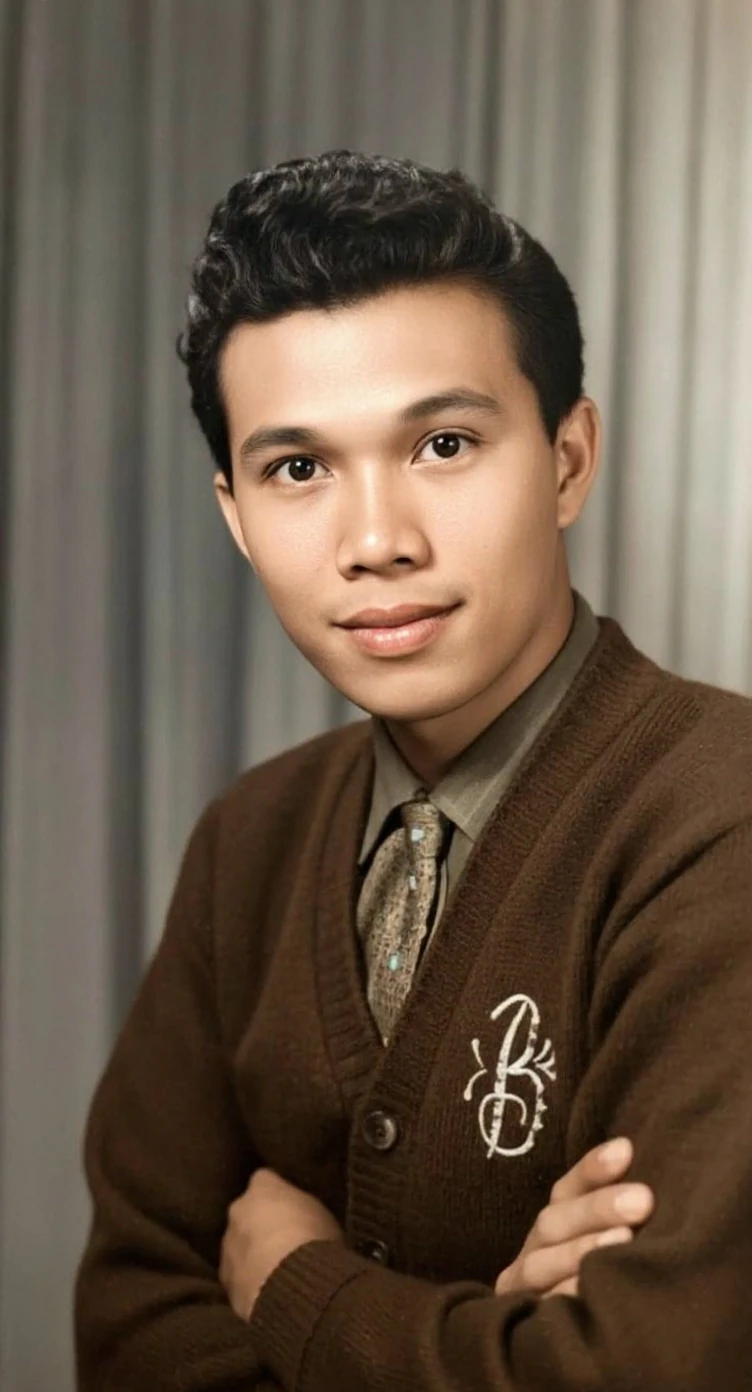
Cracks across a portrait print · Real customer example
Bright branching cracks cross the lower half of this portrait, interrupting the cardigan and folded arms. The AI result replaces those broken areas with continuous fabric and skin detail and adds color. The worn print outline and surrounding dark backing are absent from the result.
What to check: The repaired fabric, hands, colors and fine facial detail are inferred. The output also changes the framing; it does not reproduce the original print border.
Published with permission. Full framing retained; original and result may have different proportions. Reviewed September 10, 2026.
See the reviewed gallery and more damage types →This selected ImageRestoreAI result fills branching cracks with continuous fabric and skin detail. The hands, embroidery and fine facial detail are inferred, and the border changes. It is not a comparative benchmark and includes no PicWish output. It illustrates why a smooth repair is only one part of an acceptance decision.
A practical refinement checklist
- Save the full original scan. Record which defects you want reduced and which details must remain visible.
- When a tool offers damage settings, note the one used so you can compare versions meaningfully.
- Check crack intersections with eyes, fingers and clothing seams. Look for invented shapes, repeated texture or missing details.
- If using text refinement, request one clear change at a time and return to the source when evaluating it.
- Evaluate colorization separately. An old monochrome photo does not require color to be restored.
- Inspect the export at a useful viewing size. More pixels from upscaling do not establish more authentic detail.
PicWish may fit a user who wants the documented damage controls and refinement step. ImageRestoreAI may fit someone who wants to inspect a dedicated preview first. For a gap containing unique lettering or a face with little surviving information, neither tool can establish the missing content from that damaged scan alone.
Access and next steps
PicWish's restoration page describes limited free uses and credits; confirm current conditions and download requirements in your account rather than assuming every export is free. PicWish restoration FAQ, checked September 16, 2026. ImageRestoreAI's preview is free and its download is paid; no price advantage is established here.
Read the scratch repair guide, the Fotor comparison, and the reviewed gallery. Return to compare photo restoration, or preview a photograph with ImageRestoreAI.
Ready to try it yourself?
Upload your photo for a free preview. Compare faces, colors and detail before purchasing.
Upload Your Photo To Restore NOW – FREE Preview
Drag & drop or click to select • JPG, PNG, WebP, HEIC
FREE Preview • Review your result before purchasing