ImageRestoreAI vs Fotor: Restoration or a Broader Photo Editor?
Updated
Compare Fotor photo restoration with ImageRestoreAI: damage repair, color choices, editing needs and the checks to make before choosing a download.
Upload Your Photo To Restore NOW – FREE Preview
Drag & drop or click to select • JPG, PNG, WebP, HEIC
FREE Preview • Review your result before purchasing
Fotor is worth considering if restoration is one part of a broader editing project. ImageRestoreAI fits a narrower task: preview a restoration of a family photograph and decide whether to purchase its download. The choice is about the work you need to do, not an established difference in output quality.
Publisher disclosure: This comparison is written and published by the ImageRestoreAI team, which operates one of the services discussed. It is an editorial comparison of documented features and workflow fit, not an independent review or hands-on comparative test. Official sources were checked on September 16, 2026; recommendations are our editorial judgment.
Fotor has dedicated restoration tools
Fotor's photo-restoration page advertises scratch and tear repair, blur improvement and color restoration. Its feature directory also lists cropping, resizing, colorization, object removal and collage creation. Describing it as a generic editor with no restoration function would be inaccurate. Fotor restoration and feature directory, checked September 16, 2026.
For someone preparing a family collage, that range may be useful: restoration is followed by layout and presentation. Check which tools and exports your account includes before planning the whole project around them. We have not verified a paid account or measured the quality of a Fotor restoration.
ImageRestoreAI's free-preview, paid-download flow offers a focused starting point when you want a restored image to review. You can then take an accepted download into your preferred layout tool. That simplicity is a workflow consideration, not proof that a specialist automatically produces more faithful results.
Decide what should change before you edit
A faded color photograph may need a color-cast adjustment, damage repair, or both. A black-and-white photograph does not need colorization simply because it is old. Likewise, increasing image size does not by itself repair a tear.
Make three lists: damage to reduce, details to preserve and optional creative changes. A scratch across a sleeve belongs in the first list; a handwritten date belongs in the second; a new background or added color belongs in the third. This prevents a visually attractive edit from quietly changing the purpose of the project.
Color correction is not proof of original color
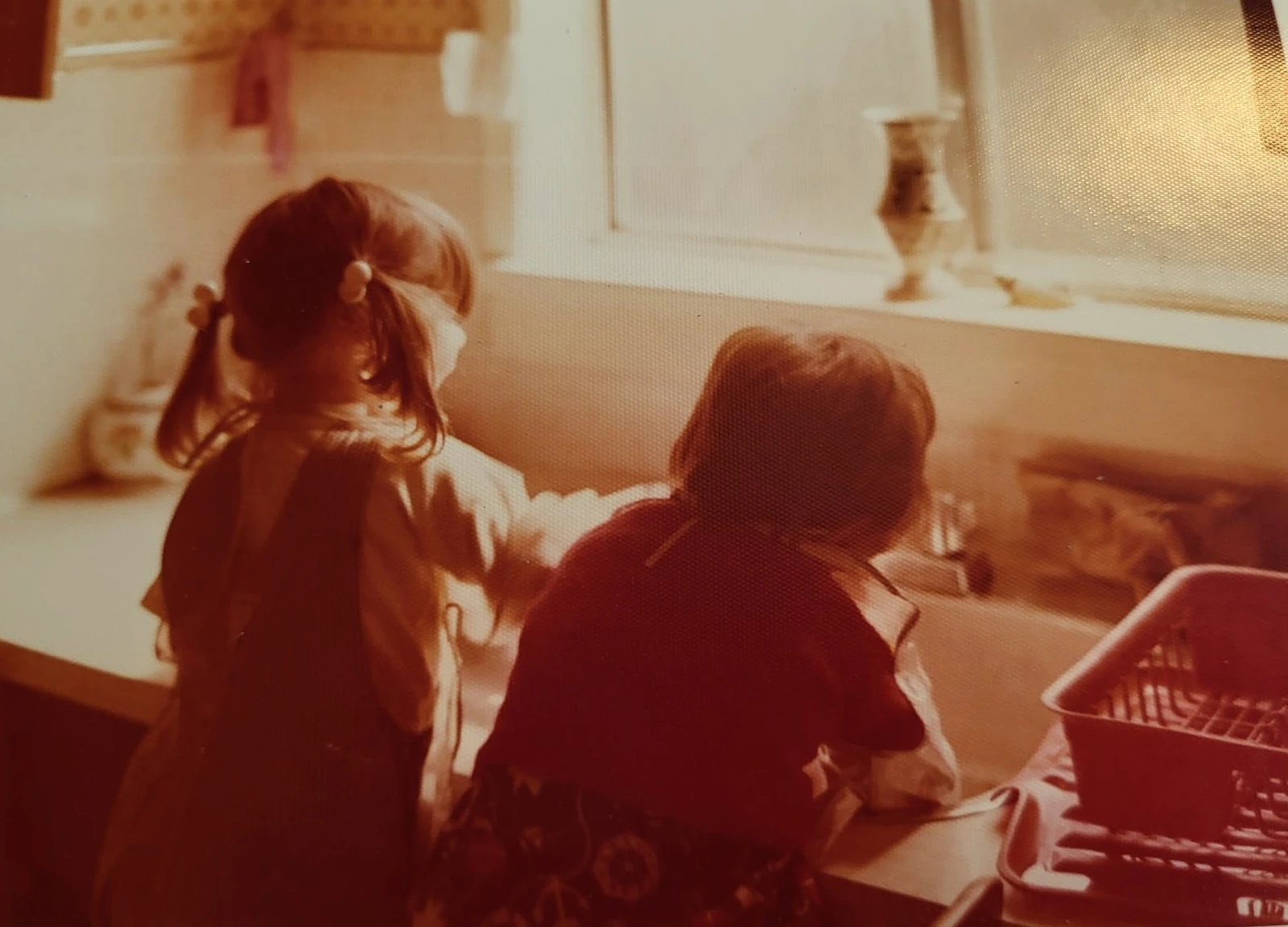
Original scan
AI restoration
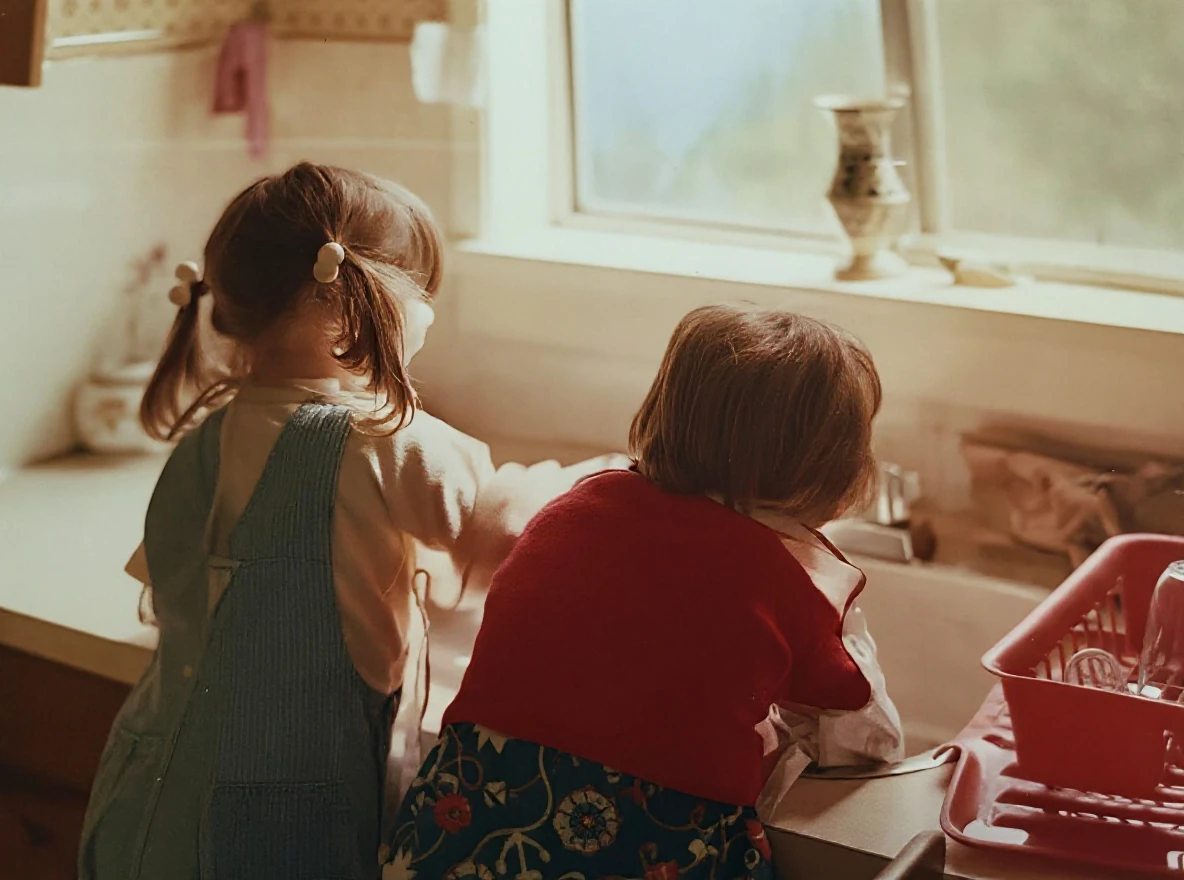
Warm-tinted kitchen photograph · Real customer example
A strong orange-red cast and visible print texture obscure this photograph of two children at a kitchen sink. The AI result reduces the warm cast and makes hair, clothing and the window frame appear clearer; the new colors and fine textures are an AI interpretation.
What to check: The colors and fabric textures are inferred. They may differ from the original scene.
Published with permission. Full framing retained; original and result may have different proportions. Reviewed September 10, 2026.
See the reviewed gallery and more damage types →This selected ImageRestoreAI result reduces a strong warm cast and changes the appearance of clothing and fine textures. The output's colors are inferred, not verified colors of the original scene. It is not a comparative benchmark, and no Fotor result is shown. The example illustrates why a cleaner-looking photo still needs review.
Checklist for an album, collage or gift
- Review the restoration first. Compare it with the untouched source before adding a frame, text or a collage layout that makes small changes harder to see.
- Separate repair and styling. If you want black and white, check that it remains black and white. If color is added, save it as an interpretation.
- Check recognizable details. Faces, patterned clothing, rings and objects with writing can look clearer while becoming less accurate.
- Check the frame. Confirm whether edges, annotations or other people have been cropped out or reconstructed.
- Check the final deliverable. Confirm pixel dimensions and export conditions for the actual download, especially if a print is the goal.
Use Fotor if you want its editing and design tools and its restoration result meets your needs. Use ImageRestoreAI if you prefer to start with a dedicated restoration preview. Neither is a replacement for physical conservation of a fragile print, and neither should be your only copy of a family record.
Choose the next step
The family photo guide helps organize the source and edited versions. For another tool combining restoration and refinement, read the PicWish comparison. See all options in compare photo restoration and inspect the reviewed gallery. You can preview your photo with ImageRestoreAI for free; downloading the restoration is paid, with the current offer shown in the purchase flow.
Ready to try it yourself?
Upload your photo for a free preview. Compare faces, colors and detail before purchasing.
Upload Your Photo To Restore NOW – FREE Preview
Drag & drop or click to select • JPG, PNG, WebP, HEIC
FREE Preview • Review your result before purchasing