ImageRestoreAI vs Gemini: Photo Repair and Prompted Editing
Updated
Compare Gemini image editing and ImageRestoreAI restoration previews, with guidance on reference images, inferred color and checking a family photo result.
Upload Your Photo To Restore NOW – FREE Preview
Drag & drop or click to select • JPG, PNG, WebP, HEIC
FREE Preview • Review your result before purchasing
Gemini supports editing uploaded images, including using multiple reference images. Consider it when you want to explain and refine an edit; consider ImageRestoreAI when you want a dedicated restoration preview. For a family photograph, the deciding question is whether the result preserves the information you value—not whether it looks newly photographed.
Publisher disclosure: This comparison is written and published by the ImageRestoreAI team, which operates one of the services discussed. It is an editorial comparison of documented features and workflow fit, not an independent review or hands-on comparative test. Official sources were checked on September 16, 2026; recommendations are our editorial judgment.
Gemini's current image tools
Google's Gemini Apps help page describes image creation and editing with Nano Banana 2, plus a Nano Banana Pro redo option for eligible paid subscribers. It documents uploaded-image edits and multiple-image inputs. Access depends on factors such as account eligibility and supported countries and languages. Check the current interface for the option available to you. Google: generate and edit images with Gemini Apps, checked September 16, 2026.
The ability to provide a reference can be useful when you have another photograph showing a garment or a setting. It also introduces a decision: are you repairing the source photograph or creating a composite influenced by another image? Be explicit about which is the target and what information the reference should supply.
ImageRestoreAI provides a browser restoration flow with a free preview and paid download. Its practical appeal is a focused result to review before purchasing. Our selected examples also show changes to faces, color and framing, so that focus is not a guarantee of historical accuracy.
Use references with a specific purpose
Suppose you have a damaged group photo and an intact portrait of one person taken at another time. That portrait can inform an editing request, but age, lighting, pose and expression may differ. A generated face that resembles the reference is not proof of the face in the damaged photograph.
A cautious starting instruction is:
Use the first image as the photograph to edit. Reduce the visible surface damage while retaining its full composition and monochrome appearance. The second image is a reference for the jacket only. Do not copy its face, pose, background or lighting into the first photograph.
This is an untested prompt suggestion, not a reliable boundary on what the model may change. Inspect every result. If references create unwanted blending, return to the source and try a narrower request without the reference.
Repair, colorization and enlargement need separate decisions
Removing a scratch asks the tool to fill damaged pixels. Enhancement changes apparent clarity or tone. Upscaling increases image dimensions. Colorization adds an interpretation of color to a monochrome source; it does not recover a color measurement that was never recorded in that file.
Keep those goals separate when assessing a result. A vivid color portrait may be pleasing while being unsuitable as evidence of a uniform, object or historical setting.
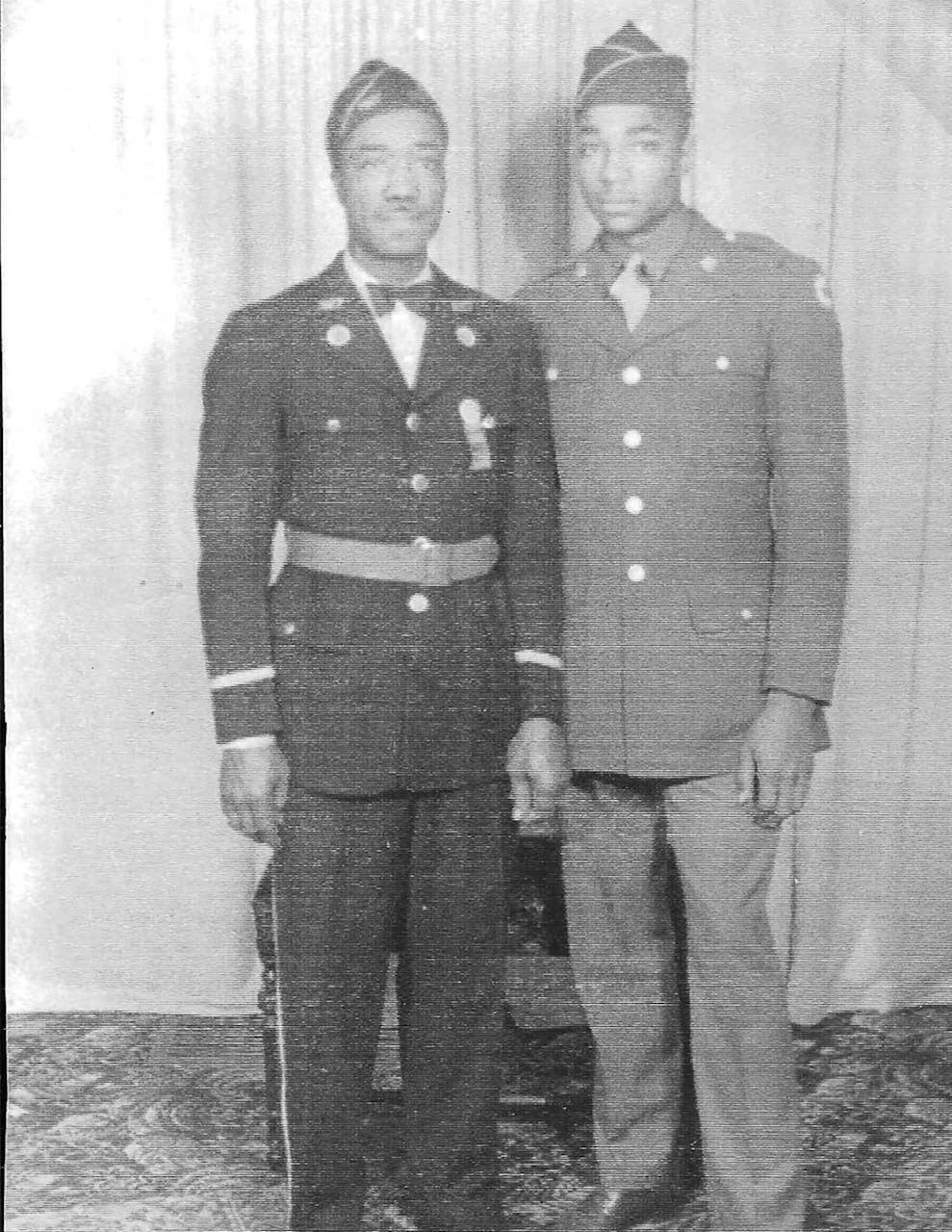
Original scan
AI restoration
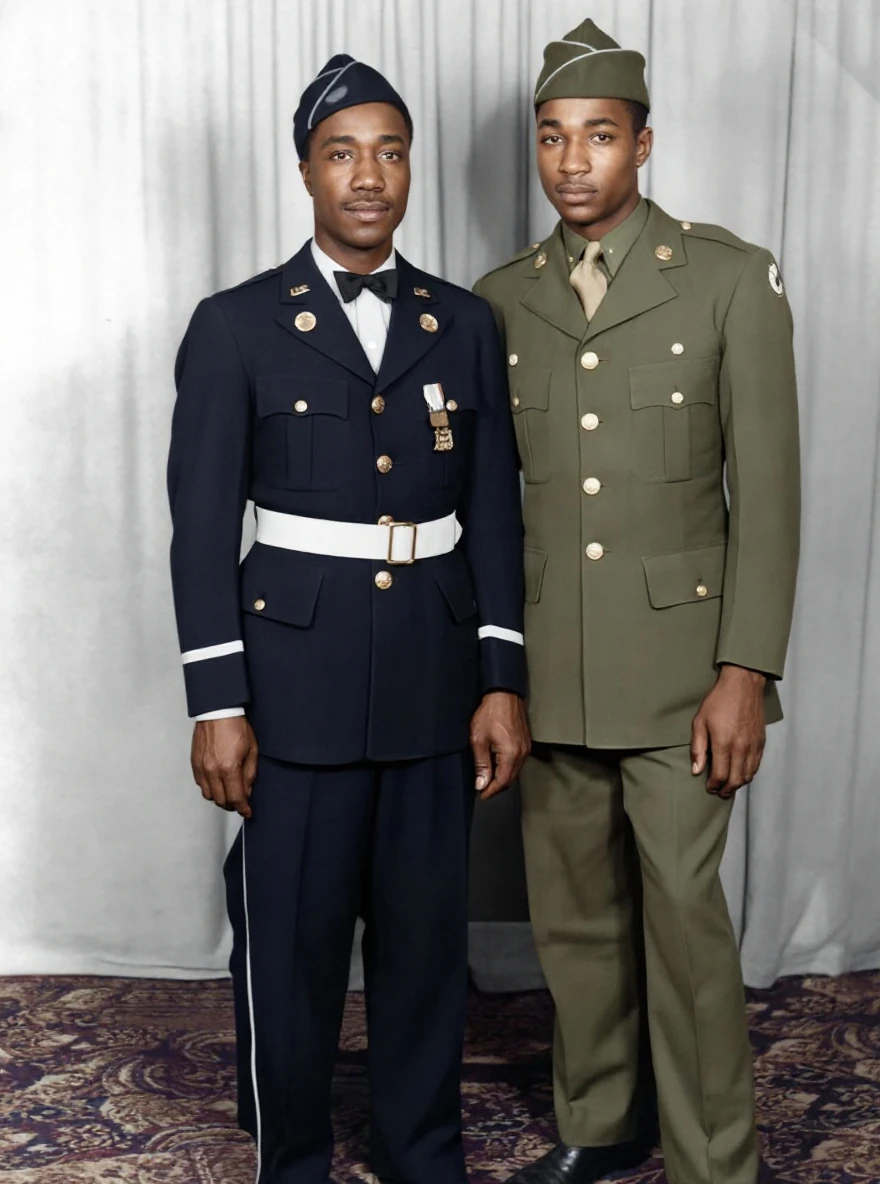
Faded portrait with AI colorization · Real customer example
The original black-and-white portrait has faded contrast and a pronounced surface texture. The AI result adds color and makes the faces and uniforms appear more defined. Uniform colors, insignia and other fine details should be treated as AI interpretation, not verified historical evidence.
What to check: Colors, insignia and facial details are inferred. They are not verified historical evidence.
Published with permission. Full framing retained; original and result may have different proportions. Reviewed September 10, 2026.
See the reviewed gallery and more damage types →This selected ImageRestoreAI example adds color and reconstructs fine details. Uniform colors, insignia and facial detail are not verified historical evidence. It is not a comparative benchmark, and no Gemini output is shown.
A checklist for reference-assisted edits
- Preserve the untouched target scan and keep reference photographs separately labeled.
- State whether colorization, cropping or missing-edge reconstruction is acceptable.
- Check that people, objects and backgrounds have not been borrowed from a reference unintentionally.
- Compare facial proportions, insignia, jewelry and handwritten text against the target scan, not just against the reference.
- Check the downloadable image and the current usage conditions before choosing a paid option. Save an edited version separately from the source.
Choose Gemini if conversational direction and references are useful to you. Choose an ImageRestoreAI preview if your immediate task is evaluating a restoration candidate with fewer editing instructions. Neither recommendation is based on a measured head-to-head test.
Continue with the ChatGPT comparison, the military photo guide, or the reviewed gallery. The comparison hub helps match other workflows to your needs. You can try an ImageRestoreAI free preview; the restored-image download is paid.
Ready to try it yourself?
Upload your photo for a free preview. Compare faces, colors and detail before purchasing.
Upload Your Photo To Restore NOW – FREE Preview
Drag & drop or click to select • JPG, PNG, WebP, HEIC
FREE Preview • Review your result before purchasing