ImageRestoreAI vs Remini: Old Photos and Portrait Enhancement
Updated
Compare Remini and ImageRestoreAI for blurry portraits and damaged scans, with official feature sources and a practical checklist for reviewing faces.
Upload Your Photo To Restore NOW – FREE Preview
Drag & drop or click to select • JPG, PNG, WebP, HEIC
FREE Preview • Review your result before purchasing
Consider Remini when your main concern is a soft portrait; consider ImageRestoreAI when you want a focused restoration preview of a damaged scan. Neither choice establishes that reconstructed facial detail matches the person in the original photograph. Decide from your own image, including the parts outside the face.
Publisher disclosure: This comparison is written and published by the ImageRestoreAI team, which operates one of the services discussed. It is an editorial comparison of documented features and workflow fit, not an independent review or hands-on comparative test. Official sources were checked on September 16, 2026; recommendations are our editorial judgment.
What Remini actually offers
Remini markets an old-photo restorer, not just a selfie tool. Its official page describes blur reduction, sharpening, grain cleanup and enhancement of faces in group photographs. Those are documented product capabilities, not results we measured. Remini photo restorer, checked September 16, 2026.
That makes Remini a reasonable candidate for a small, soft family portrait where the picture is largely intact. A cracked print raises an additional question: does the output repair the lines crossing clothing, hands and background, as well as make the face look clearer? A sharper face alone does not answer it. The provider page does not establish comparative performance on those damage types.
ImageRestoreAI offers a browser restoration workflow with a free preview and paid download. Its practical advantage is the opportunity to inspect a restoration of your photograph before deciding to buy the download. Its limits are visible in our published examples: faces, colors and framing can change. A dedicated restoration workflow is not evidence of better identity preservation.
Separate softness from missing information
Enhancement changes the appearance of existing image information, for example by reducing noise or making edges more distinct. Upscaling increases pixel dimensions. Repair fills or replaces damaged regions. AI tools can combine these operations, and any of them may introduce inferred detail.
For a blurry but intact portrait, judge the eyes, mouth, hairline and skin texture. For a torn portrait, also judge the reconstructed gap. Do not accept a plausible new feature as confirmation of what the camera originally recorded. If likeness matters more than smoothness, a modest correction may be preferable to a dramatic reconstruction.
A portrait example and its limits
Original scan
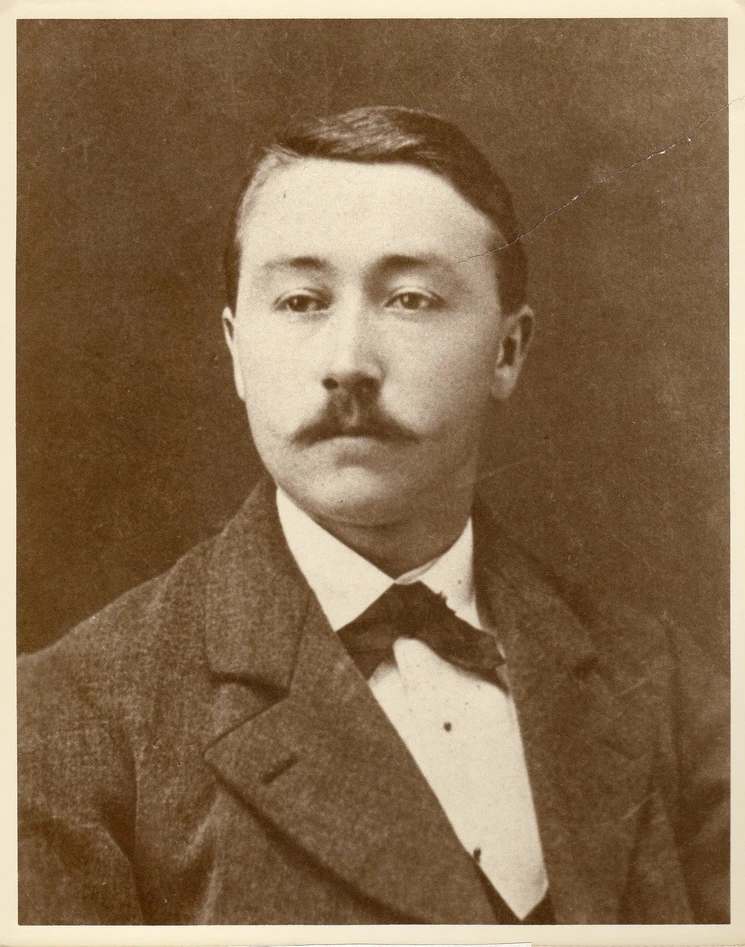
AI restoration

Scratched sepia studio portrait · Real customer example
The original has a sepia cast, fine surface marks and a diagonal scratch across the upper right. The AI result smooths the background and makes the hair and jacket appear more defined, while also introducing skin tones and changing fine facial detail.
What to check: The output adds color and reconstructs fine facial detail. It does not establish the original colors or guarantee an unchanged likeness.
Published with permission. Full framing retained; original and result may have different proportions. Reviewed September 10, 2026.
See the reviewed gallery and more damage types →This selected ImageRestoreAI example shows surface cleanup together with changes in color and fine facial detail. It is not a comparative benchmark: there is no Remini output here, and the example does not represent an average success rate. Use it to decide what you would want to inspect, not to declare a winner.
A useful comparison on your own portrait
- Keep an untouched scan, including any meaningful border or handwriting. Use the same source copy for each service you choose to try.
- Write down the goal before processing: clearer eyes, fewer scratches, or a larger print. Treat added color as a separate preference.
- Compare faces at a similar displayed size. Check the shape of the eyelids, teeth, glasses and facial hair against the source.
- Look beyond the face. Inspect background lines, jewelry, hands and clothing for new patterns or missing objects.
- Inspect the whole frame and the available export details. Check current payment, watermark and download conditions in the actual service before purchasing.
If Remini already gives you a result you prefer, there is no reason to replace it simply because another product uses the word restoration. If damage across the print remains the main problem, an ImageRestoreAI preview is another candidate to assess. For work requiring exact local decisions, consider an editor or a human restorer who can discuss your instructions.
Continue by photograph type
Read the old portrait guide, the scratch repair guide, or the Topaz comparison if adjustable desktop enhancement is important. Return to compare photo restoration options, explore the reviewed gallery, or try an ImageRestoreAI free preview. Downloads are paid; check the current offer before purchasing.
Ready to try it yourself?
Upload your photo for a free preview. Compare faces, colors and detail before purchasing.
Upload Your Photo To Restore NOW – FREE Preview
Drag & drop or click to select • JPG, PNG, WebP, HEIC
FREE Preview • Review your result before purchasing