ImageRestoreAI vs Topaz Photo AI and Topaz Photo
Updated
Understand legacy Topaz Photo AI versus current Topaz Photo, then compare desktop controls with ImageRestoreAI restoration previews for old photographs.
Upload Your Photo To Restore NOW – FREE Preview
Drag & drop or click to select • JPG, PNG, WebP, HEIC
FREE Preview • Review your result before purchasing
Choose between a browser restoration preview and a desktop editing workflow—but first check which Topaz product you mean. Topaz Photo AI is now a legacy product; Topaz Photo is the current application. An old comparison based on a single perpetual purchase does not describe the current product offering.
Publisher disclosure: This comparison is written and published by the ImageRestoreAI team, which operates one of the services discussed. It is an editorial comparison of documented features and workflow fit, not an independent review or hands-on comparative test. Official sources were checked on September 16, 2026; recommendations are our editorial judgment.
Photo AI and Topaz Photo are different products
Topaz's official comparison identifies Photo AI 4.0.4 as its final legacy version, with no further model updates. Existing owners can access their licensed version. Current Topaz Photo receives ongoing development and requires an active subscription. We retain this article's Photo AI URL for readers researching the older name, while distinguishing the current product. Topaz's product comparison, checked September 16, 2026.
Current Topaz Photo includes denoising, sharpening, face recovery, upscaling, and dust-and-scratch removal. Its documentation describes an automatic starting point with controls for changing the chosen enhancements. It is therefore inaccurate to call it only an upscaler or to suggest that it has no damage-repair tools. Topaz Photo features and quick start, checked September 16, 2026.
Match the workflow to the job
Topaz is worth considering if you want to adjust individual enhancements on a compatible Mac or Windows computer. An existing Photo AI owner should first check whether their licensed version already does the needed work. Current Topaz Photo's additional capabilities should be judged against a real requirement, not the assumption that an upgrade is always necessary.
ImageRestoreAI is a browser service with a free restoration preview and paid download. It fits someone who wants to review a proposed restoration without setting up a desktop editor. It does not provide evidence of superior face fidelity, faster processing or a lower total cost than your existing software.
Topaz documents local processing for most models and optional cloud rendering. Check the particular model and system requirements; a desktop application is not a blanket promise that every operation is offline. Topaz processing and licensing details, checked September 16, 2026.
Compare the purchase you actually need
As checked on September 16, 2026, ImageRestoreAI lists these USD photo-credit packs: Small: 3 credits for $5.99; Album: 10 credits for $9.99; Archive: 50 credits for $29.99. These are nonrecurring credit-pack purchases. See current ImageRestoreAI pricing; checkout determines the final amount. A free preview lets you review the candidate before purchasing download access.
Compare the pack you would actually use with your current Topaz license or the subscription you are considering. Dividing a bundle price by its credits is not a standalone single-photo offer, and unused credits change the practical cost of your project. We do not claim that either option is cheaper for every collection size.
Repair before judging enlargement
Upscaling makes an image larger. Sharpening and denoising affect apparent detail and texture. Damage removal addresses marks or gaps. These needs overlap, but they are not interchangeable: enlarging a crease can leave you with a larger crease.
For a scan destined for print, assess the damaged region at a sensible viewing size first, then assess the final enlarged version. Generative detail may make an image look convincing without recovering the original structure. Topaz's upscaling documentation itself warns that poor source resolution and model choice can produce unwanted artifacts. Upscale and resize documentation, checked September 16, 2026.
A repair example to inspect
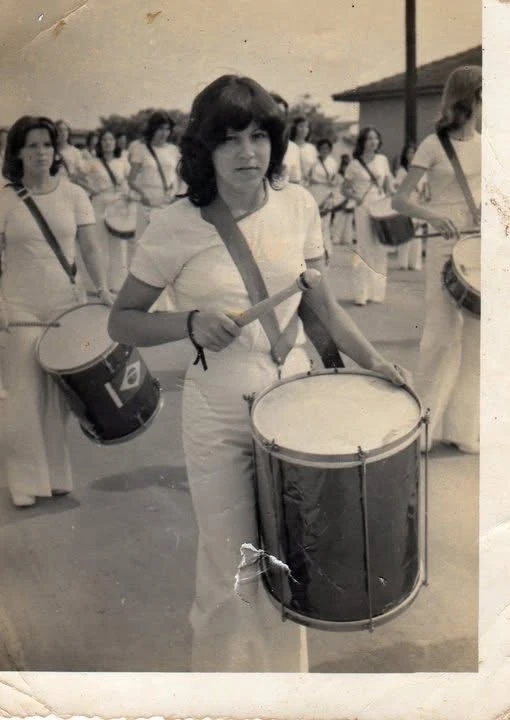
Original scan
AI restoration
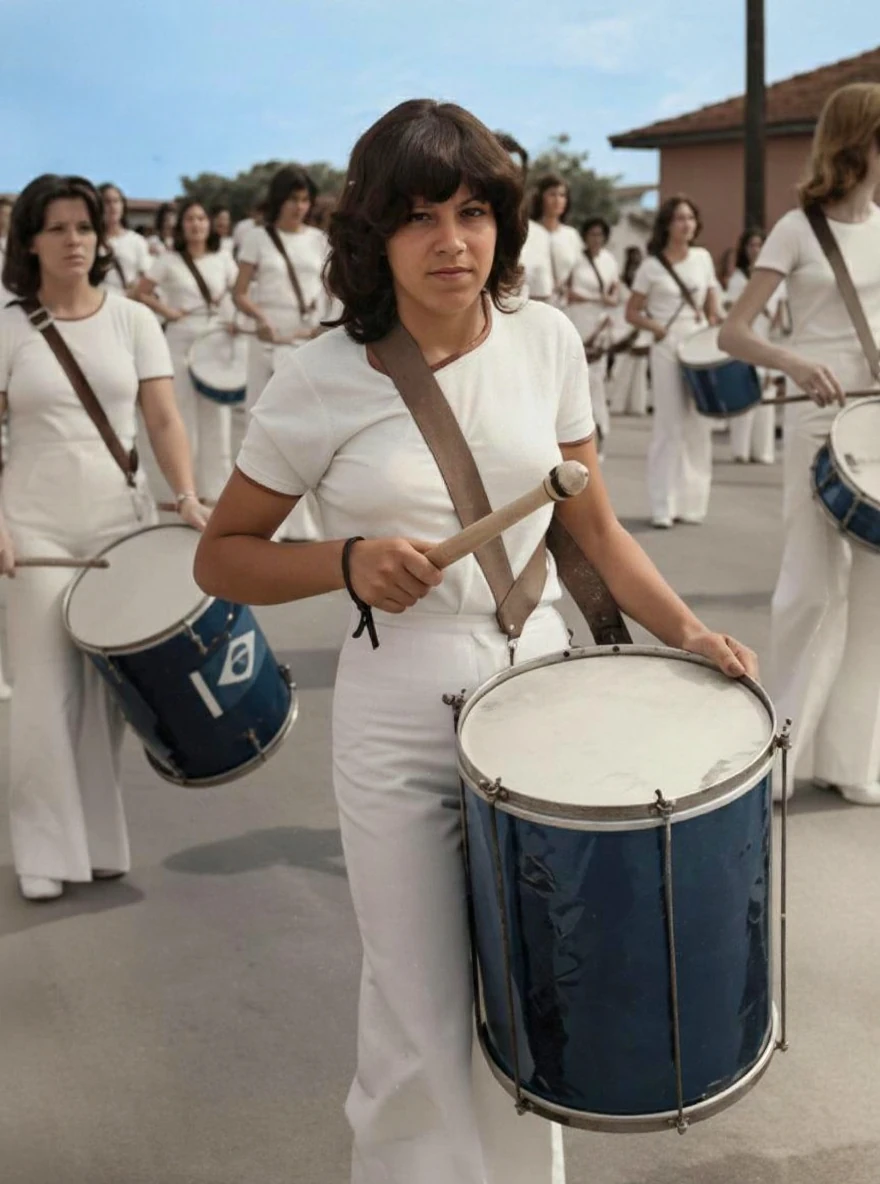
Creases and abrasion in a drummer photograph · Real customer example
The original has folded corners, marks along its pale border and a conspicuous damaged patch beside the foreground drum. These marks are no longer visible in the AI result, which adds color and makes the clothing and drums appear clearer. The original print border is not retained in the output.
What to check: Colors, facial features, drum details and small background elements are reconstructed. Border removal is a change in the product output, not proof that the paper itself was repaired.
Published with permission. Full framing retained; original and result may have different proportions. Reviewed September 10, 2026.
See the reviewed gallery and more damage types →This selected ImageRestoreAI output fills a damaged patch and changes colors, drum details and framing. It is not a comparative benchmark or a Topaz result. It shows why removing damage and preserving the original record are different evaluation questions.
Desktop or browser: a practical decision
- Identify whether you need damage removal, noise reduction, sharpening or a particular print size.
- If you own Photo AI, note its version and assess the result you can already obtain before buying another product.
- For current Topaz Photo, verify computer compatibility, needed models and subscription conditions on the official site.
- For ImageRestoreAI, inspect the free preview for faces, text, borders and reconstructed texture before purchasing a download.
- Keep the unedited scan and record which output you accepted. Avoid repeatedly enhancing an already reconstructed face without returning to the source for comparison.
Read the scanning resolution guide, the Remini comparison, and the reviewed gallery. The photo restoration comparison hub covers other workflows. To assess the browser option, start an ImageRestoreAI free preview; its restoration download is paid.
Ready to try it yourself?
Upload your photo for a free preview. Compare faces, colors and detail before purchasing.
Upload Your Photo To Restore NOW – FREE Preview
Drag & drop or click to select • JPG, PNG, WebP, HEIC
FREE Preview • Review your result before purchasing