ImageRestoreAI vs VanceAI: Which Restoration Workflow Fits?
Updated
Choose between ImageRestoreAI and VanceAI by restoration workflow, credit pricing, desktop needs and what to inspect before buying a photo download.
Upload Your Photo To Restore NOW – FREE Preview
Drag & drop or click to select • JPG, PNG, WebP, HEIC
FREE Preview • Review your result before purchasing
VanceAI is the more relevant shortlist option when you want separate restoration, colorization and enlargement tools, or need to investigate a Windows batch workflow. ImageRestoreAI is a focused option for reviewing a free restoration preview before buying a download. The right choice depends on the steps your scan needs and the result you accept, not a published quality score.
Publisher disclosure: This page is written by ImageRestoreAI, a service included in the comparison. We checked official documentation on September 16, 2026. We did not run an independently measured head-to-head test, purchase competitor outputs or measure processing speeds.
Start with the job, then choose the workflow
A scratched portrait, a faded snapshot and a scan that needs enlarging are different jobs. Write down which changes you want before trying either service. For example: remove the crease, keep the full border, preserve the expression and create a file suitable for the intended print. Adding color is a separate decision.
VanceAI's Photo Restorer page describes repair followed, where needed, by a separate colorizer or upscaler. It also directs Windows users toward batch restoration. This makes VanceAI worth evaluating for a collection with different processing needs; it does not prove a particular batch will need less review.
ImageRestoreAI offers a free preview with paid downloads. Use the comparison hub for the current product offer. We have not established an equivalent desktop batch workflow or manual masking controls for ImageRestoreAI, so those capabilities are not part of our recommendation.
VanceAI pricing needs a workflow check
VanceAI's current pricing page lists subscription and pay-as-you-go web credits, plus separate Windows desktop plans. Its tool-specific table and generic FAQ disagree about credit consumption. Confirm the charge shown for the actual operation before paying; do not equate a credit with a completed restored photograph.
This matters when you plan multiple steps. Decide whether you need restoration alone or restoration followed by colorization and enlargement, then check each operation's charge and the plan's renewal and expiry terms. With ImageRestoreAI, inspect the current paid download offer after evaluating the preview. The visible ImageRestoreAI photo packs, checked September 16, 2026, contain 3 credits for US$5.99, 10 for US$9.99 or 50 for US$29.99. These packs are nonrecurring purchases; check the current pricing page and final checkout amount. We do not equate a credit allowance with a count of approved photos.
The cost that matters to an album project is the amount spent to obtain acceptable files. A plan's advertised allowance says nothing about how many results you will approve. Budget time for reviewing faces and borders as well as money for processing.
Web and desktop are separate buying decisions
A desktop application is useful only if it supports your computer and the specific work you need. VanceAI's site distinguishes local and cloud desktop offerings. Check the selected application's processing mode and included restoration features before treating it as a replacement for the web service. We have not installed or audited either desktop product, and make no comparative privacy claim.
For a large set, make a small pilot containing a group photograph, a portrait with damage crossing the face, and a faded color print. A successful single portrait is insufficient evidence for the rest of an album. The family photo restoration guide provides a way to organize that review.
A real example: a crease is only part of the decision
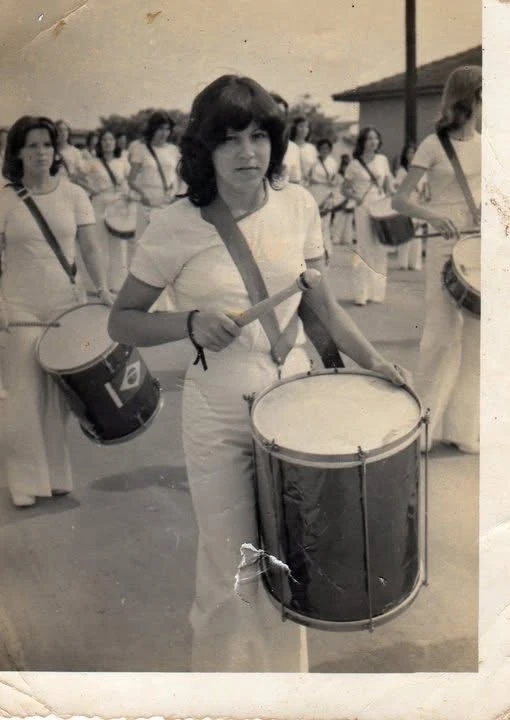
Original scan
AI restoration
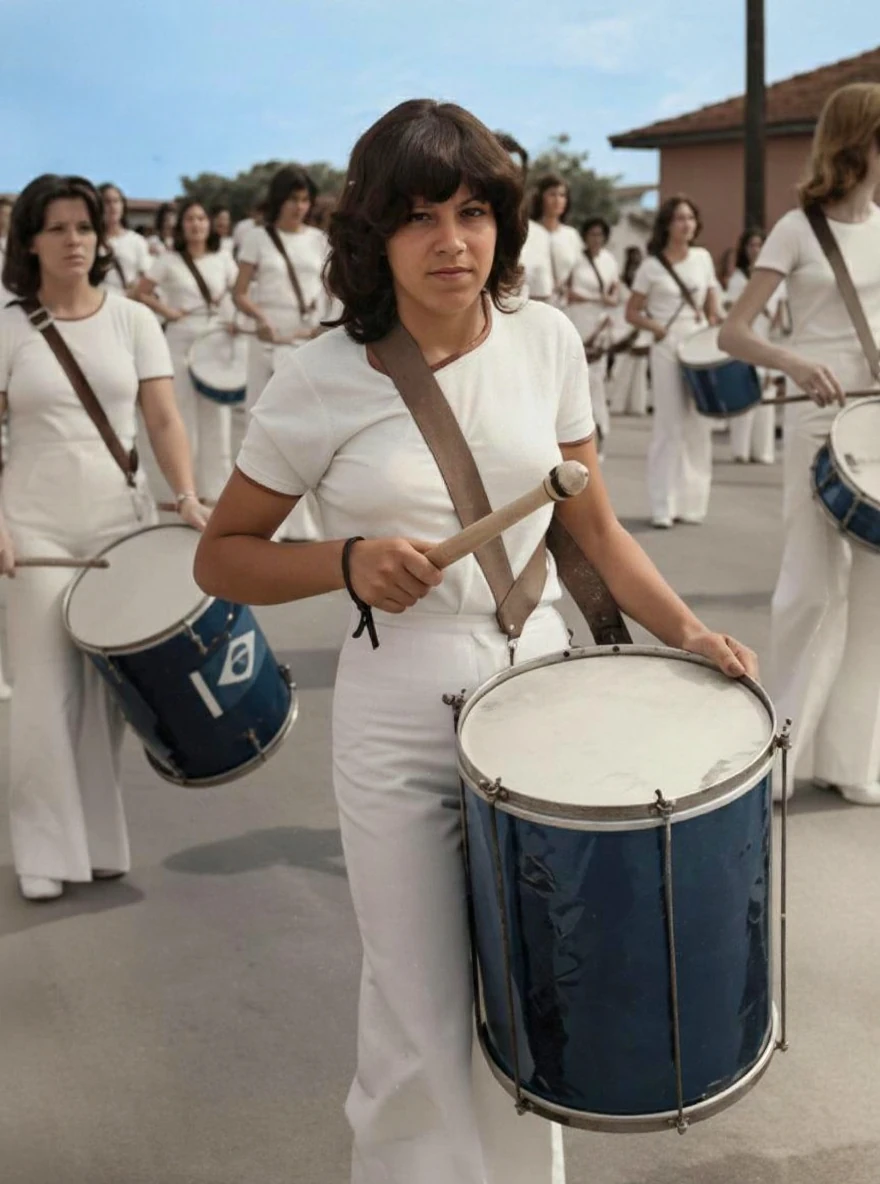
Creases and abrasion in a drummer photograph · Real customer example
The original has folded corners, marks along its pale border and a conspicuous damaged patch beside the foreground drum. These marks are no longer visible in the AI result, which adds color and makes the clothing and drums appear clearer. The original print border is not retained in the output.
What to check: Colors, facial features, drum details and small background elements are reconstructed. Border removal is a change in the product output, not proof that the paper itself was repaired.
Published with permission. Full framing retained; original and result may have different proportions. Reviewed September 10, 2026.
See the reviewed gallery and more damage types →This ImageRestoreAI result reconstructs color, facial features, drum details and small background elements. Border removal is also a change in the output. It illustrates the questions to ask of a restoration, not how VanceAI would process the same scan.
If the photograph documents an instrument, costume or event, inspect those objects as carefully as the face. Cleaner edges do not establish that reconstructed lettering or hardware matches what was originally photographed. Keep the untouched scan alongside any version you choose.
A practical pilot before an album purchase
- Specify the desired changes. Separate scratch repair, optional colorization and print enlargement so you can judge each step.
- Use a consistent scan. Record the source file and settings for your own review. Do not switch crops between tools.
- Review structure first. Check face shape, fingers, clothing seams, drum edges and background objects before judging saturation or sharpness.
- Inspect the final intended size. A result that looks convincing in a thumbnail may reveal repeated texture or changed eyes when enlarged. If only a reduced preview is available, note that limitation.
- Approve a manageable batch. Confirm charges and download requirements before repeating the workflow; keep rejected attempts separate from approved files.
For the damage itself, see repairing creases digitally. For a color original, use the faded-color guide to distinguish correction of surviving color from a new color interpretation.
Which should you choose?
Choose VanceAI for further evaluation when its range of tools or Windows workflow matches your project. Choose ImageRestoreAI when its preview meets your restoration brief and its download offer works for you. Choose a manual editing workflow when selective changes and revision instructions matter more than automatic processing.
For a broader shortlist, read VanceAI alternatives by use case. For another browser restoration option, see ImageRestoreAI vs Hotpot AI. You can also preview your photo with ImageRestoreAI before deciding about a paid download.
Sources checked September 16, 2026: VanceAI's linked restoration and pricing pages. Recommendations describe workflow fit; no output-quality winner, fixed turnaround, historical accuracy or effective per-photo price is established.
Ready to try it yourself?
Upload your photo for a free preview. Compare faces, colors and detail before purchasing.
Upload Your Photo To Restore NOW – FREE Preview
Drag & drop or click to select • JPG, PNG, WebP, HEIC
FREE Preview • Review your result before purchasing