AI Photo Restoration vs Photoshop: Convenience and Editing Control
Updated
Compare an AI restoration preview with Photoshop local edits, masks and AI filters. Choose a workflow for selective repairs, revisions and source preservation.
Upload Your Photo To Restore NOW – FREE Preview
Drag & drop or click to select • JPG, PNG, WebP, HEIC
FREE Preview • Review your result before purchasing
Choose an AI restoration service when you want to assess a generated result; choose Photoshop when you want to decide where and how individual edits apply. Photoshop also includes AI features, so this is a workflow choice rather than a simple contest between AI and manual editing.
Publisher disclosure: This article is published by ImageRestoreAI, which sells AI restoration services. Adobe's official documentation was checked on September 16, 2026. We did not run a hands-on Photoshop-versus-ImageRestoreAI benchmark. The example below is our own selected output, and the editing sequence is a proposed workflow rather than a record of a Photoshop test.
What control changes in practice
Suppose a crease crosses a plain background while the person's face is intact. You may want the crease reduced but every facial feature left alone. In an automated output, you must inspect whether changes extend beyond your intended repair. In a layered editor, you can organize the correction around that specific region and review it separately.
Adobe documents adjustment layers, masks and retouching on separate layers as ways to preserve editable choices. These controls let you revisit a change without flattening every decision into the original. They do not guarantee that the chosen repair is accurate. Source checked September 16, 2026: Adobe's nondestructive editing guide.
This added control comes with work: you have to decide what to sample, what to hide, how far to adjust tones and when to stop. If you do not want to make those decisions yourself, consider a professional restoration service.
Inspect what an automated result changes beyond the damage
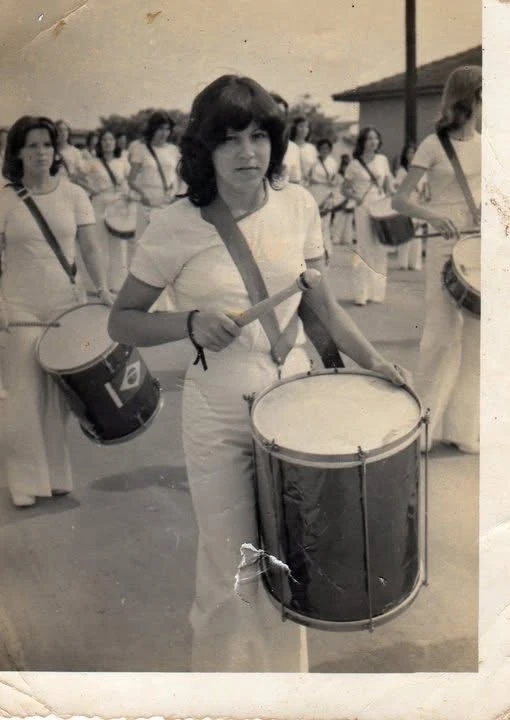
Original scan
AI restoration
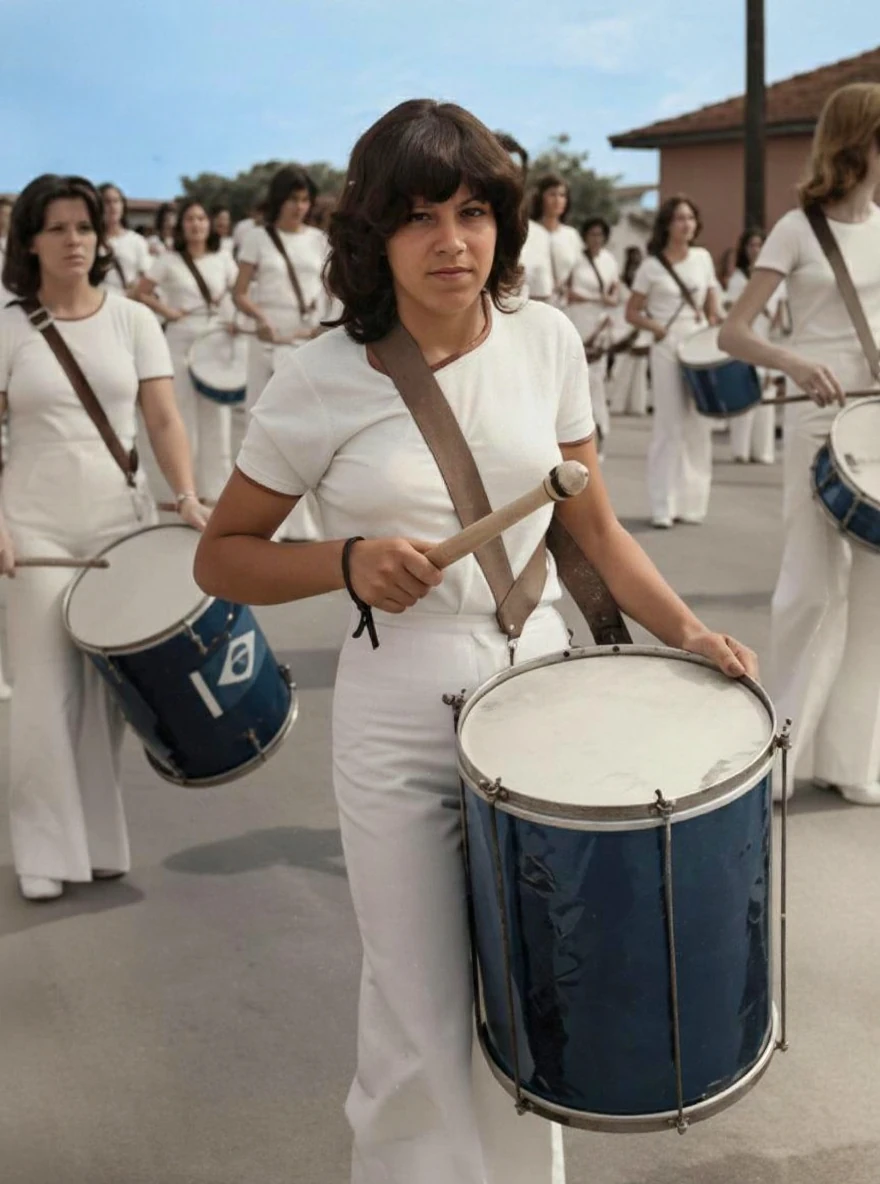
Creases and abrasion in a drummer photograph · Real customer example
The original has folded corners, marks along its pale border and a conspicuous damaged patch beside the foreground drum. These marks are no longer visible in the AI result, which adds color and makes the clothing and drums appear clearer. The original print border is not retained in the output.
What to check: Colors, facial features, drum details and small background elements are reconstructed. Border removal is a change in the product output, not proof that the paper itself was repaired.
Published with permission. Full framing retained; original and result may have different proportions. Reviewed September 10, 2026.
See the reviewed gallery and more damage types →This ImageRestoreAI example no longer shows the damaged patch beside the foreground drum. The original print border is also absent; colors, facial features, drum details and background elements are reconstructed. It demonstrates why a cleaner-looking image and a narrowly targeted repair can be different goals.
The original and output retain their own framing in the display, and their proportions differ. There is no Photoshop result in this pair. It cannot establish which method would perform better on this photo. For the damage-specific discussion, see repairing creases digitally.
Photoshop offers both local repair and AI assistance
Local repairs guided by existing pixels
Adobe's cloning and healing documentation, checked September 16, 2026, explains choosing sample sources for the Clone Stamp and Healing Brush tools. This is relevant when a small damaged area has usable surrounding material.
For example, a nearby plain backdrop may provide a reasonable source for a scratch repair. Copying an eye, medal or letter involves much stronger assumptions. A manual edit can invent detail too; the use of a brush does not establish historical truth.
AI filters with output choices
Adobe's Neural Filters workflow, checked September 16, 2026, documents outputs such as a new layer or Smart Filter and notes that some filters need an internet connection. Its filter list includes Photo Restoration among beta filters. Check the features available in your installed version rather than assuming identical behavior across Photoshop platforms.
AI assistance inside Photoshop still needs review. Adding controls around a generated result does not make inferred colors or reconstructed features verified evidence.
A workflow for selective edits
The following is an editorial recommendation for organizing a restoration, not a claim that we performed it on the example above:
- Keep the source separate. Preserve an untouched scan, including margins and annotations that matter.
- Write the brief. Identify the damage to reduce and the details that must remain unchanged.
- Separate kinds of change. Keep local repairs distinct from tone adjustments or optional colorization so you can review each decision.
- Compare with the original often. Check the whole frame as well as the repair. Look for copied patterns, changed edges and overly smooth transitions.
- Retain reversible choices. Save an editable working document as well as a separate delivery copy.
- Review at the intended size. A result that looks convincing as a thumbnail may reveal altered lettering or facial detail when enlarged.
Adobe's multi-layer sampling guidance, checked September 16, 2026, explains how supported retouching tools can sample visible content while keeping edits separate. Consult the instructions for the particular tool rather than assuming all repair tools have identical settings.
Can you combine an AI result with Photoshop?
Yes, as a workflow choice: preserve the original, obtain an AI output and use an editor to evaluate whether any parts are useful. Check dimensions, alignment and framing before trying to combine them. If the AI output changes pose or proportions, the two files may not align cleanly.
Do not use the reconstructed version as the only reference for another pass. Repeated edits can compound invented detail. For likeness review, compare directly with the source and any independently identified reference photographs. Our old-portrait guide gives a focused checklist.
Compare what you would pay for and use
ImageRestoreAI offers a free preview and paid access; check the current photo-credit packs and final checkout amount. A bundle price should be evaluated against the credits you expect to use.
Photoshop is an editing-software purchase. Check Adobe's current plans, reviewed September 16, 2026, for the relevant platform, billing commitment, renewal and cancellation conditions. We quote no fixed subscription price because plan and regional terms matter. Include your learning and review effort in the decision without assuming an invented hourly cost or time saving.
If a preview satisfies your requirements, you may not need an editor. If you need repeated local adjustments and editable decisions, Photoshop merits consideration. If you want that control but not the editing work, an artist-led commission may be the more suitable route.
Use the AI tools guide for functional alternatives, the MemoryCherish comparison for a commissioned service, or the broader service guide for conservation and provider selection. Return to the comparison hub, or try a preview of your own photo.
Ready to try it yourself?
Upload your photo for a free preview. Compare faces, colors and detail before purchasing.
Upload Your Photo To Restore NOW – FREE Preview
Drag & drop or click to select • JPG, PNG, WebP, HEIC
FREE Preview • Review your result before purchasing