Best AI Photo Restoration Tools: Choose by Task and Control
Updated
Compare AI restoration, face enhancement, genealogy photo tools and Photoshop controls. Use a practical checklist before paying for a restored photo.
Upload Your Photo To Restore NOW – FREE Preview
Drag & drop or click to select • JPG, PNG, WebP, HEIC
FREE Preview • Review your result before purchasing
Choose an AI photo restoration tool by the job it must perform and the changes you are prepared to accept. Repairing a scratch, making a face look sharper, adding color and enlarging a file are different tasks. A tool that does one well for your image may be inappropriate for the others.
Publisher disclosure: This guide is published by ImageRestoreAI, a provider included below. Official product information was checked on September 16, 2026. We have not conducted a hands-on comparison of these competitors. This is a functional shortlist without quality scores or a first-place winner.
Compare the options by what you need to do
ImageRestoreAI: preview a digital restoration
Consider our service when you want to assess an AI restoration of a scan or photograph before buying access. The workflow offers a free preview and paid access. Your decision still depends on whether the result preserves the details you care about; our examples below show why checking only sharpness is insufficient.
Review the current photo-credit packs. Packs are purchases of credits, so a bundle's implied unit cost is not a standalone offer. Confirm the final checkout amount and applicable access conditions.
Remini: evaluate face enhancement and related adjustments
Remini's official site lists face enhancement, old-photo restoration, denoising, color adjustment and enlargement. That makes it a relevant option to investigate when softness or facial detail is your main concern. Inspect the whole photograph too: an appealing face alone does not answer whether writing, hands or background objects survived the edit. These are buyer checks, not defects established by our testing. Source checked September 16, 2026: Remini's official feature overview.
MyHeritage: separate repair, enhancement and color within family-history work
MyHeritage documents distinct Photo Repair, Photo Enhancer and In Color features. Its guidance explains that enhanced facial detail is inferred. Consider it if you want these functions alongside a family-photo collection, then verify which features your account or plan includes. Keep genealogical conclusions tied to the original and independent records. Source checked September 16, 2026: MyHeritage's photo feature guide.
Photoshop: combine AI assistance with local editing
Adobe documents AI Neural Filters as well as editing controls. This is a candidate when you want to keep some changes and reject others, and are prepared to work in an editor. Adobe's filter list includes Photo Restoration under beta filters; check availability in your installed version. Sources checked September 16, 2026: Neural Filters list and filter workflow. Our Photoshop comparison focuses on that extra control.
A sharper face is not the same as an unchanged face
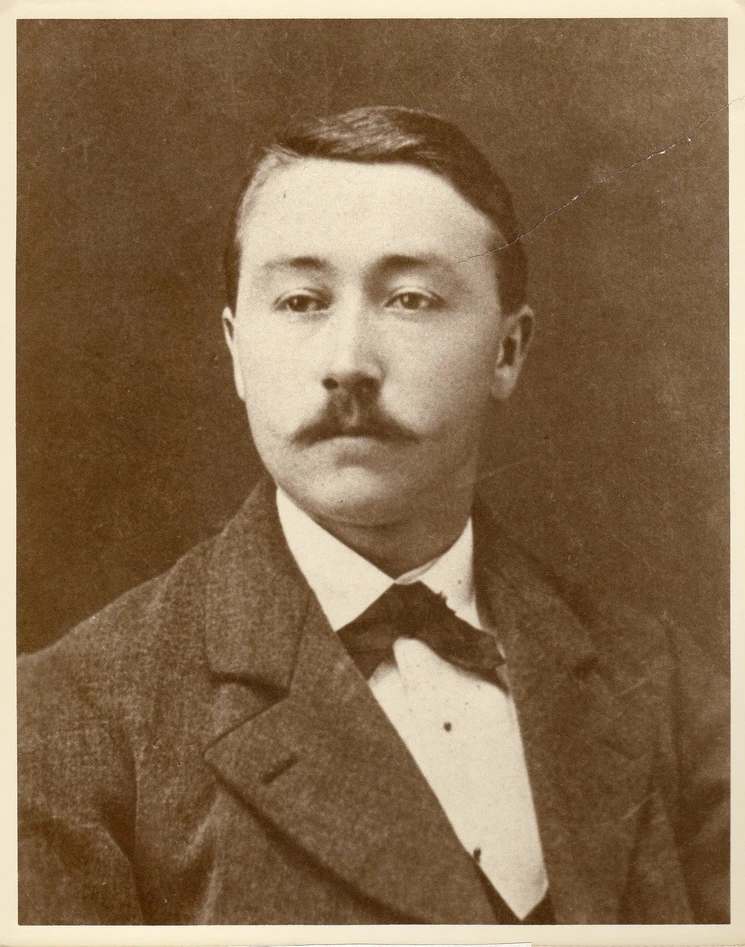
Original scan
AI restoration

Scratched sepia studio portrait · Real customer example
The original has a sepia cast, fine surface marks and a diagonal scratch across the upper right. The AI result smooths the background and makes the hair and jacket appear more defined, while also introducing skin tones and changing fine facial detail.
What to check: The output adds color and reconstructs fine facial detail. It does not establish the original colors or guarantee an unchanged likeness.
Published with permission. Full framing retained; original and result may have different proportions. Reviewed September 10, 2026.
See the reviewed gallery and more damage types →This selected ImageRestoreAI output smooths marks and makes hair and clothing appear more defined. It also adds color and changes fine facial detail. It cannot establish the original colors or guarantee an unchanged likeness. It is a real, permissioned example from our service, not a result from Remini, MyHeritage or Photoshop and not a measurement of typical performance.
Before trying a tool, identify a few visible features you can compare: the eye direction, mouth shape, hairline, glasses and boundary between skin and clothing. If an output makes an uncertain feature look definite, record that uncertainty instead of treating the new detail as discovered evidence.
Colorization needs a separate decision
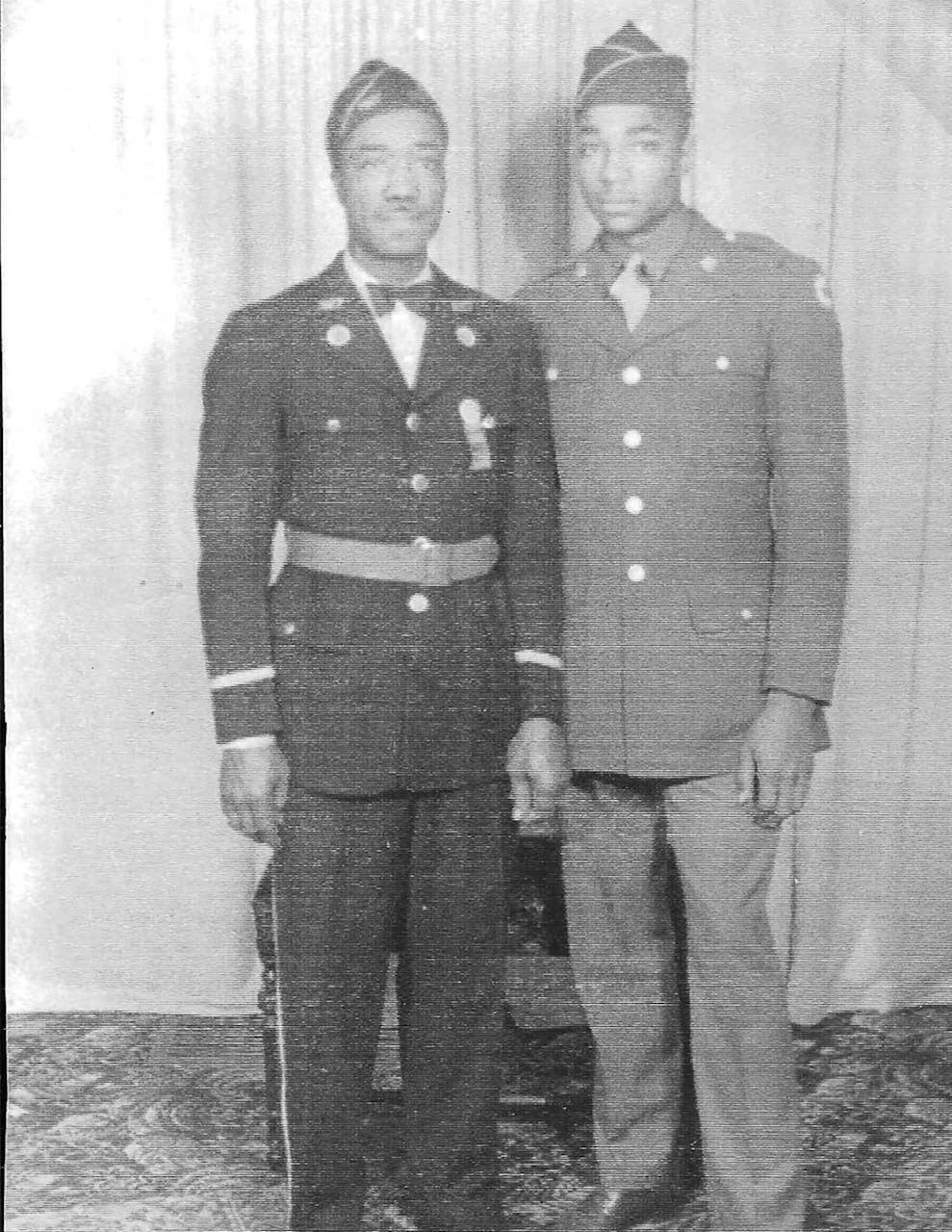
Original scan
AI restoration
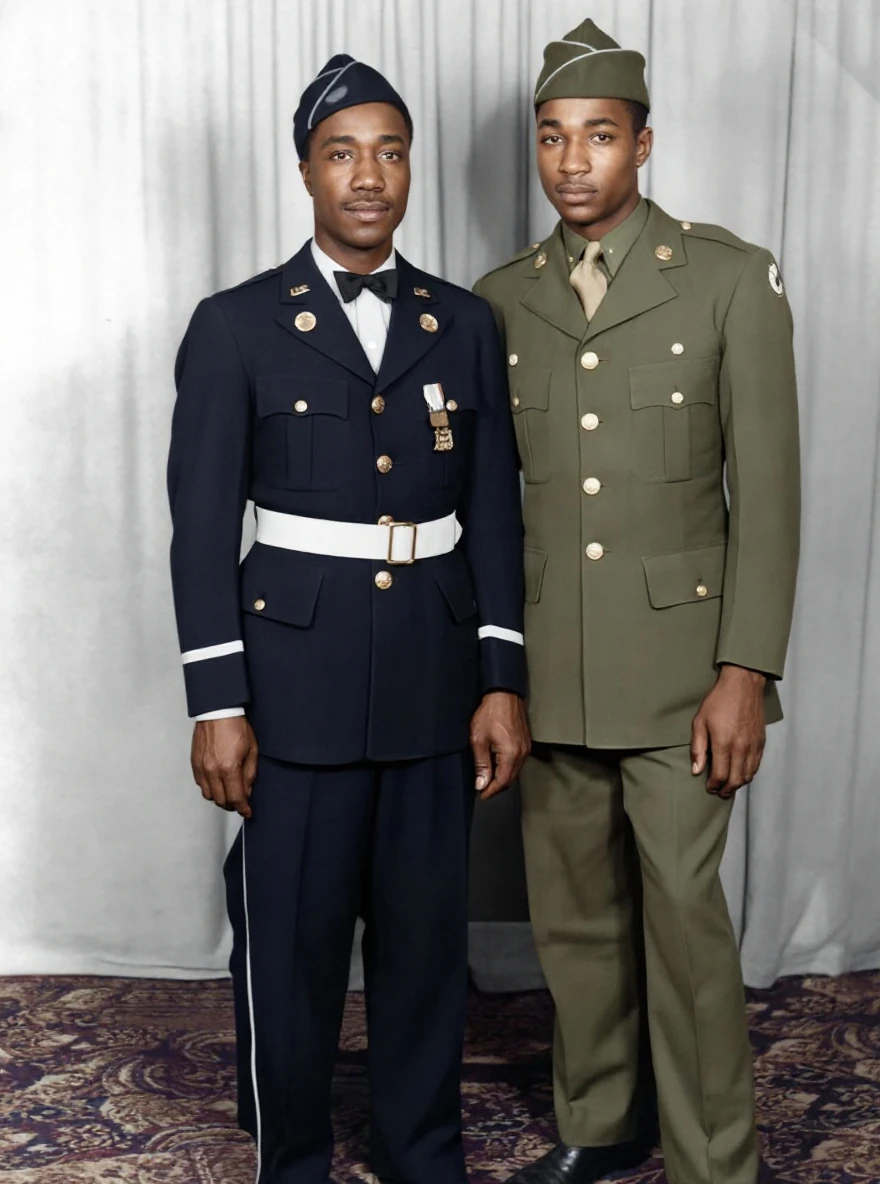
Faded portrait with AI colorization · Real customer example
The original black-and-white portrait has faded contrast and a pronounced surface texture. The AI result adds color and makes the faces and uniforms appear more defined. Uniform colors, insignia and other fine details should be treated as AI interpretation, not verified historical evidence.
What to check: Colors, insignia and facial details are inferred. They are not verified historical evidence.
Published with permission. Full framing retained; original and result may have different proportions. Reviewed September 10, 2026.
See the reviewed gallery and more damage types →The added colors, insignia and facial details in this ImageRestoreAI result are inferred. They do not establish a unit, rank, identity or historical date. A tool's ability to add color is useful for a labeled interpretation, but it is not evidence of authentic historical color. Keep the monochrome source, and use the military-photo guide when uniforms or insignia need careful handling.
For every tool, ask whether colorization is optional, whether existing tones can be retained and whether you can inspect the result before committing to a purchase. Do not infer those controls from an attractive promotional example.
A practical comparison you can make on your own photograph
- Use the same source copy. Avoid comparing one tool's fresh scan with another tool's compressed screenshot.
- Define the task. Write “reduce the scratch beside the eye” or “improve contrast while retaining monochrome,” rather than “make it better.”
- Compare equivalent views. Look at the full frame at a similar display size, then inspect the same small areas. More pixels alone do not establish more source detail.
- Check collateral changes. Look for missing writing, altered expressions, unfamiliar patterns and changed borders.
- Record the settings and date. Keep each output separate. Your experience with that file is evidence for your purchase, not a universal ranking.
- Check what payment unlocks. Review file access, available downloads, credits, renewal terms and any usage limits before checkout.
These are suggested buyer checks; we are not claiming to have performed this test across the listed products. We do not quote competitor plan amounts because availability and terms can differ by account, platform and region. Consult each provider's current purchase screen.
When to leave the automated route
If important missing detail needs a reference image, a specific correction or an explanation from an editor, use the human restoration checklist. If MemoryCherish is on your shortlist, see the dedicated comparison. For fragile originals or a broader service choice, start with choosing a restoration service.
Return to the comparison hub to choose your next route, or try an ImageRestoreAI preview with your original safely retained.
Ready to try it yourself?
Upload your photo for a free preview. Compare faces, colors and detail before purchasing.
Upload Your Photo To Restore NOW – FREE Preview
Drag & drop or click to select • JPG, PNG, WebP, HEIC
FREE Preview • Review your result before purchasing