ImageRestoreAI vs MyHeritage In Color: Repair or Colorize?
Updated
Compare ImageRestoreAI and MyHeritage In Color for damaged scans, colorization and family-history workflows, with subscription and preview limits.
Upload Your Photo To Restore NOW – FREE Preview
Drag & drop or click to select • JPG, PNG, WebP, HEIC
FREE Preview • Review your result before purchasing
Choose MyHeritage In Color for further evaluation if you mainly want to add color to family photographs, especially when you already keep them in MyHeritage. Consider ImageRestoreAI when you want to assess a damaged-photo restoration through a free preview before buying a download. If you need both damage repair and colorization, judge those as separate requirements.
Publisher disclosure: ImageRestoreAI publishes this article and sells restoration downloads. We reviewed official MyHeritage sources on September 16, 2026; we did not conduct an independently measured head-to-head test. Our selected example below does not show a MyHeritage result.
In Color is not the whole MyHeritage photo suite
The distinction matters for a scratched black-and-white print. Adding plausible color does not by itself establish that a tear has been repaired or that a blurred face has been recovered. MyHeritage's Photo subscription help page lists In Color, Photo Enhancer and Photo Repair as separate features. In Color covers adding color and restoring faded colors; repair and enhancement have their own roles.
Calling MyHeritage simply a colorizer would therefore understate its wider suite. Equally, comparing In Color alone with an entire restoration workflow would blur the decision you are trying to make.
| Your goal | What to evaluate |
|---|---|
| Add color to a reasonably intact monochrome photo | MyHeritage In Color and the acceptability of its color interpretation |
| Repair a damaged scan | ImageRestoreAI's preview, or MyHeritage's separate Photo Repair feature |
| Work with photos already in a family-history account | Existing MyHeritage access and the convenience of that workflow |
| Obtain one restored image | ImageRestoreAI's current paid download offer after inspecting the preview |
| Reproduce a known uniform or dress color | A workflow that permits reference-based correction and review |
The comparison hub maintains current ImageRestoreAI offer details. Free previews and paid downloads are distinct. The visible photo-credit packs, checked September 16, 2026, are 3 credits for US$5.99, 10 for US$9.99 and 50 for US$29.99, purchased on a nonrecurring basis. Confirm the final amount at checkout. These bundle prices do not establish a fixed cost per finished photo.
Subscription value depends on what you already use
MyHeritage's current plan overview includes a Photo subscription as well as broader Complete and Omni plans. Existing subscribers should check included photo features before paying for a second service. New users should compare the appropriate photo offer with their needs, rather than assume the broadest family-history plan is necessary.
We have not verified a universal current checkout price, renewal quote or free-photo allowance. Do not use an old promotion or a past blog post as a current entitlement. Check the amount payable, billing period, renewal and the specific feature included in your account.
ImageRestoreAI's relevant decision is whether the preview is worth purchasing as a download at the current offer. It is not possible to declare a price winner without that offer and the MyHeritage plan applicable to you.
What control can you expect over color?
MyHeritage's May 2020 settings article documents saturation, rendering and model choices. It is historical documentation, not verification of every control or subscription entitlement in today's interface. Check your current photo editor before buying for a particular setting.
Those kinds of adjustments also differ from painting a specific coat or eye color using a reference. With either service, an appealing palette can still be wrong. MyHeritage's access guide explicitly describes generated colors as simulated and explains keeping the original and colorized versions separately.
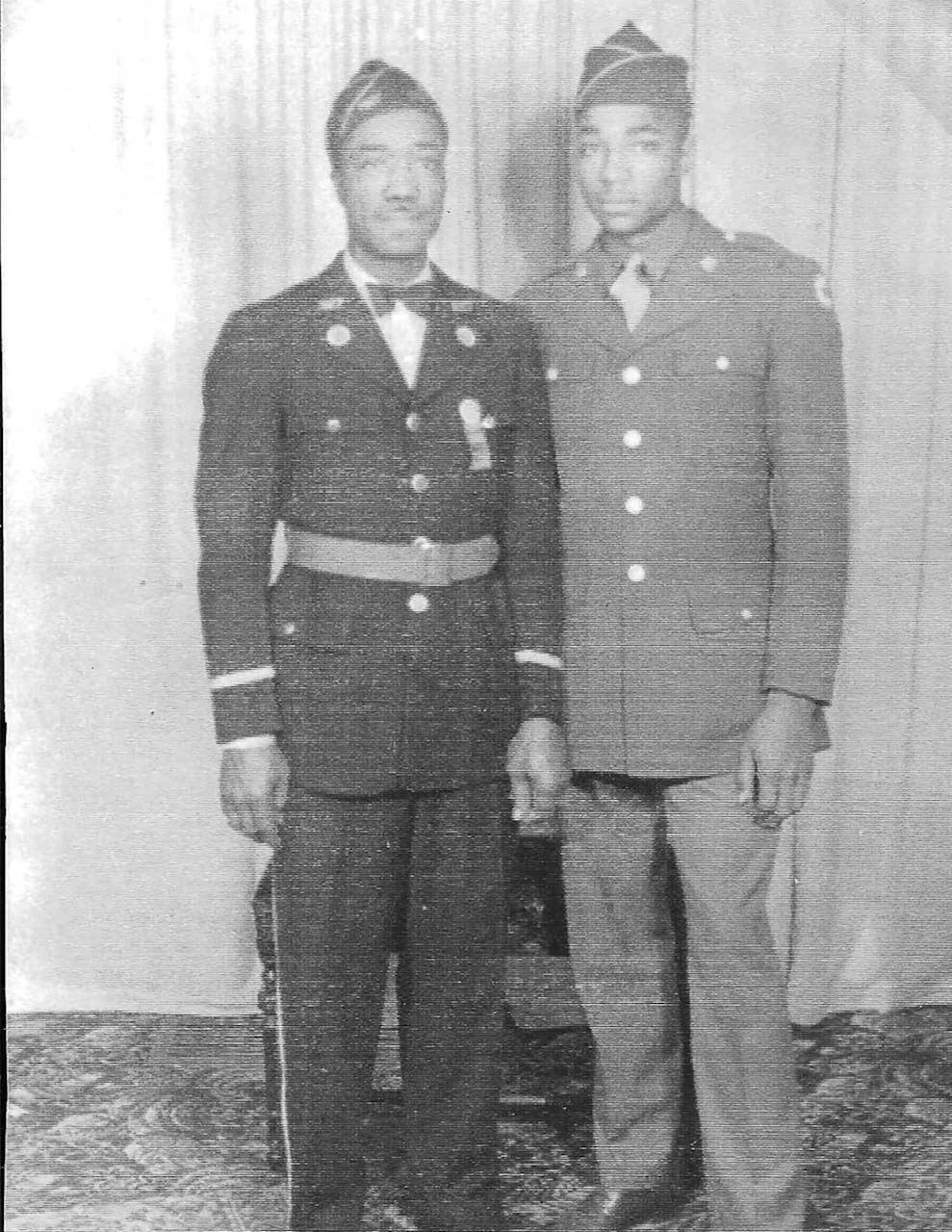
Original scan
AI restoration
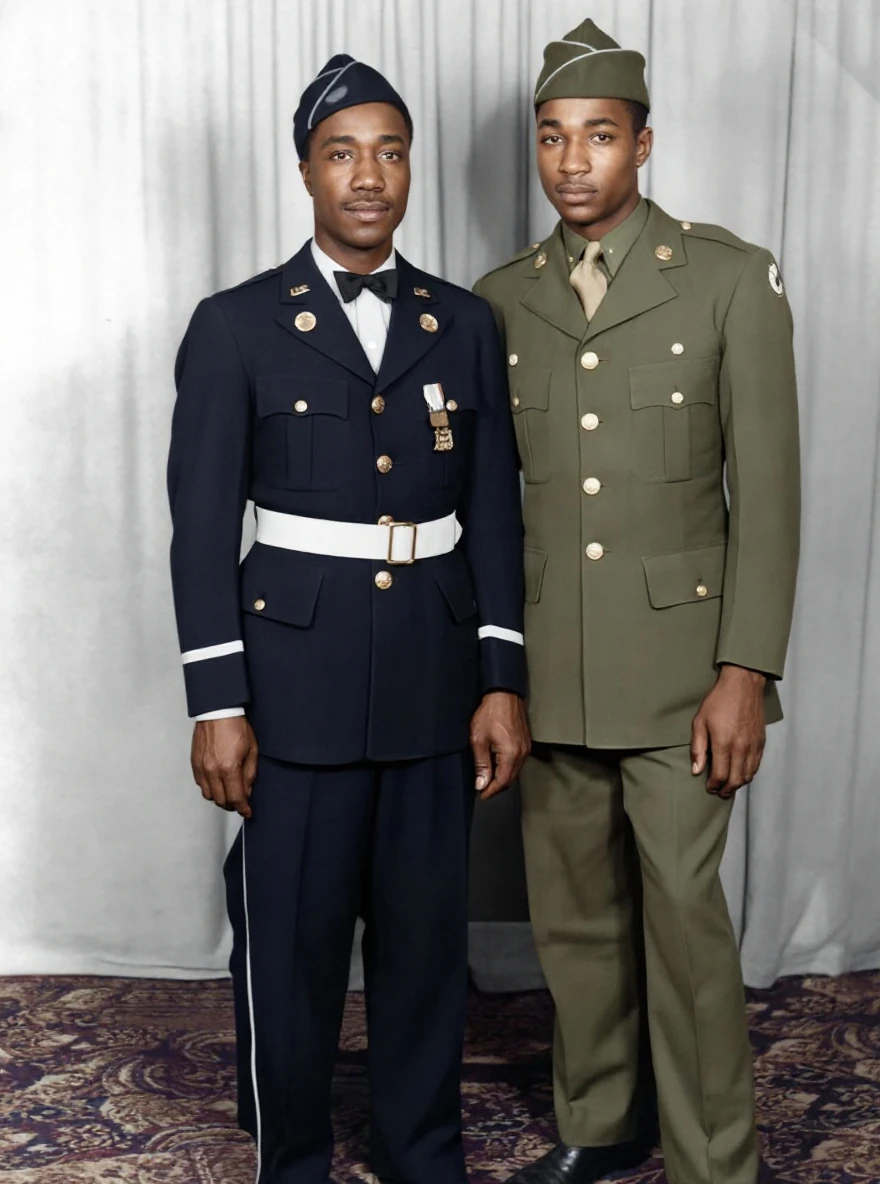
Faded portrait with AI colorization · Real customer example
The original black-and-white portrait has faded contrast and a pronounced surface texture. The AI result adds color and makes the faces and uniforms appear more defined. Uniform colors, insignia and other fine details should be treated as AI interpretation, not verified historical evidence.
What to check: Colors, insignia and facial details are inferred. They are not verified historical evidence.
Published with permission. Full framing retained; original and result may have different proportions. Reviewed September 10, 2026.
See the reviewed gallery and more damage types →Our example makes the same limitation visible: uniform colors, insignia and facial details are inferred. Neither the colors nor an apparently clearer badge establish a military unit, rank, date or identity. Use the military photo restoration guide for a workflow that keeps evidence separate from illustration.
Inspect a colorized portrait before approving it
- Separate the objectives. Decide whether you need damage repair, face enhancement, colorization or a combination. Assess each independently.
- Check likeness before color. Compare eye shape, mouth, hair and age cues with the scan and other known photographs of the person.
- Look at color boundaries. Inspect ears, collars, hands, hair and background edges for color spilling across objects.
- Use references carefully. If a dress or uniform color is known, note discrepancies. Without supporting evidence, label it unknown rather than trusting a plausible prediction.
- Preserve two versions. Keep the original monochrome scan and label the new file as colorized. Record any additional repair or crop.
- Verify access and delivery. Check the current subscription or download offer, output dimensions and which preview details remain too small to judge.
For family sharing, the family restoration guide helps keep captions and identities attached. For an original that already contains faded color, see recovering faded color; recoloring and correcting a surviving color record are different choices.
Decide by the photograph you have
MyHeritage is a sensible choice to evaluate first if its photo tools are already included in your account and fit your goal. ImageRestoreAI is an option when you want to see a restoration preview and make a download purchase decision for that image. If neither result respects the details you care about, a targeted manual edit may be the next step.
For a wider shortlist, read MyHeritage colorization alternatives. For a suite with separate restoration and color tools, see ImageRestoreAI vs VanceAI. Or start an ImageRestoreAI preview.
Sources checked September 16, 2026: linked MyHeritage help pages and the explicitly dated settings article. No historical-fidelity guarantee, comparative privacy finding, speed measurement or quality ranking is claimed.
Ready to try it yourself?
Upload your photo for a free preview. Compare faces, colors and detail before purchasing.
Upload Your Photo To Restore NOW – FREE Preview
Drag & drop or click to select • JPG, PNG, WebP, HEIC
FREE Preview • Review your result before purchasing