MyHeritage Colorize Alternatives: Choose by Photo and Control
Updated
Find MyHeritage colorization alternatives for damaged photos, standalone color tools and manual correction, with pricing and historical-accuracy limits.
Upload Your Photo To Restore NOW – FREE Preview
Drag & drop or click to select • JPG, PNG, WebP, HEIC
FREE Preview • Review your result before purchasing
If you want a MyHeritage colorization alternative, first decide whether the problem is the colors, the damaged scan or the subscription fit. Hotpot and VanceAI offer standalone colorization tools. ImageRestoreAI is an option when restoration is part of the job and you want to inspect a preview before buying a download. Manual color work is worth considering when you have reference colors that an automatic result must match.
MyHeritage may still be the right fit if you already use its photo features. This guide compares several routes; the dedicated ImageRestoreAI vs MyHeritage In Color comparison covers those two services in depth.
Publisher disclosure: This is an ImageRestoreAI guide, not an independent ranking. Sources were checked September 16, 2026. We have not run a measured same-image head-to-head test or verified a quality winner.
Match the alternative to the reason for switching
| Your reason | Route to consider | What must pass your review |
|---|---|---|
| You want to explore standalone colorization | Hotpot's Photo Colorizer | Color boundaries, usage terms and the available output |
| You need several image-processing steps | VanceAI's colorizer and related tools | Each step's result and the complete charge |
| Your scan needs restoration as well as a color interpretation | ImageRestoreAI | The preview's likeness, repaired detail, color and crop |
| You know the required colors | Manual regional color correction | Agreement with references and an approved proof |
| You already have access through MyHeritage | Check your existing photo features first | Whether they already solve the problem |
Hotpot: a separate colorization starting point
Hotpot's Photo Colorizer is an option for exploring color without starting with a wider family-history workflow. Its page offers free access, specifies a noncommercial license for free images and warns that predicted colors can be wrong. Check the usage terms and the current pricing model for the output you intend to use.
Choose this route to evaluate an otherwise readable black-and-white photograph. If the scan has tears through the face, adding color will not answer whether the face was repaired acceptably. For the restoration side of Hotpot, see ImageRestoreAI vs Hotpot AI.
VanceAI: color as one step in a larger workflow
VanceAI has a dedicated Photo Colorizer alongside its restoration tools. This is worth evaluating if you want to review a repaired version before adding color or consider enlargement separately. The existence of multiple tools does not establish that every intermediate step improves a photograph.
Check the pricing page and the charge shown for your actual operation. Official pages contain inconsistent credit descriptions, so we do not convert credits into a price per finished colorized photo. Compare the full sequence you need, including download requirements, before purchasing. The VanceAI alternatives guide covers other routes if a larger suite is not what you want.
ImageRestoreAI: judge the restoration and the color together
ImageRestoreAI offers free previews and paid downloads. It is an option when you want to assess what happens to a damaged or faded photograph, rather than evaluate color alone. Check the photo restoration comparison hub for current offer details. The visible photo-credit packs, checked September 16, 2026, are nonrecurring purchases: 3 credits for US$5.99, 10 for US$9.99 and 50 for US$29.99. Confirm the final amount at checkout. A free preview does not mean a free full-resolution download, and manual regional color controls have not been verified for this recommendation.
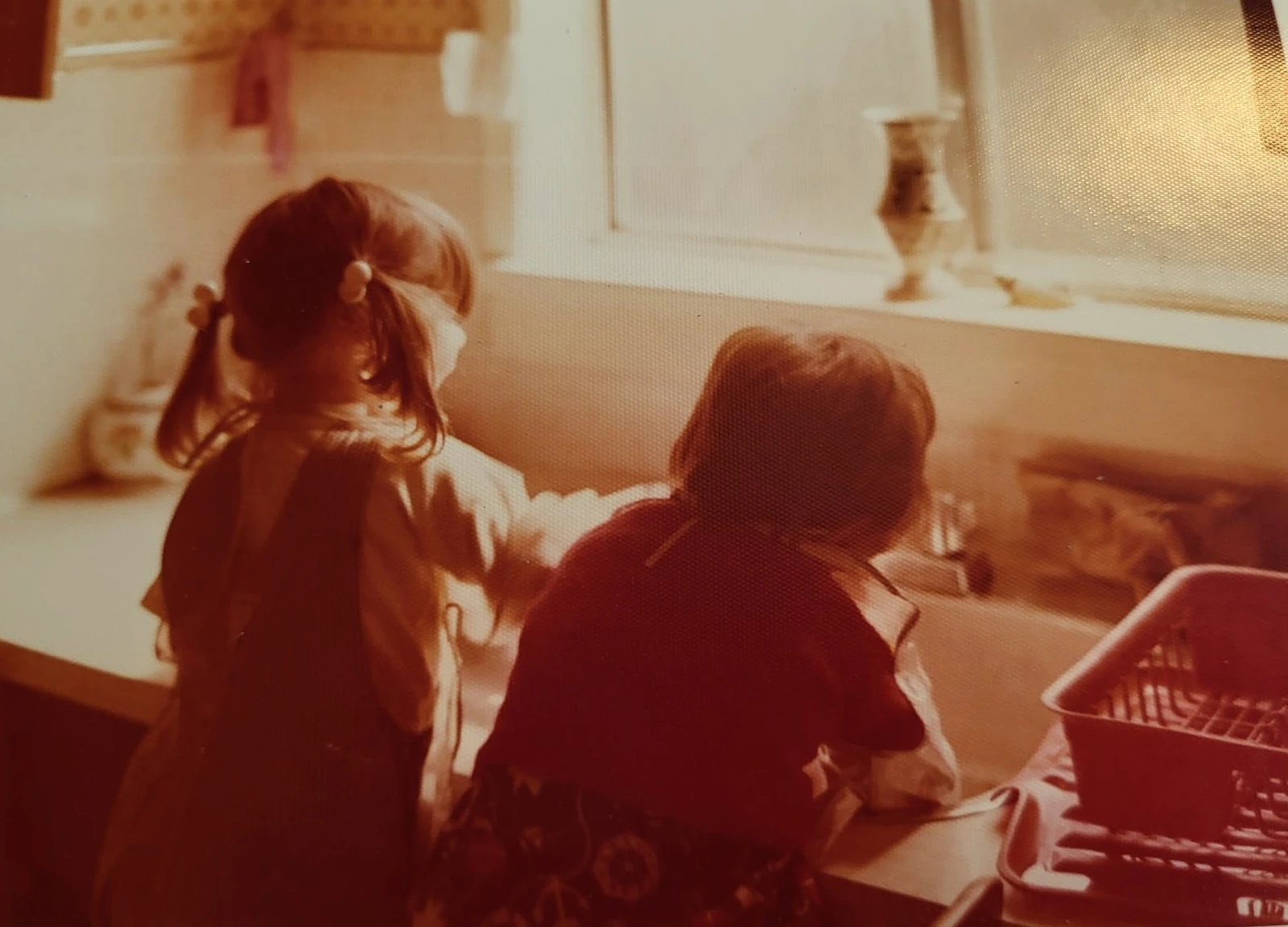
Original scan
AI restoration
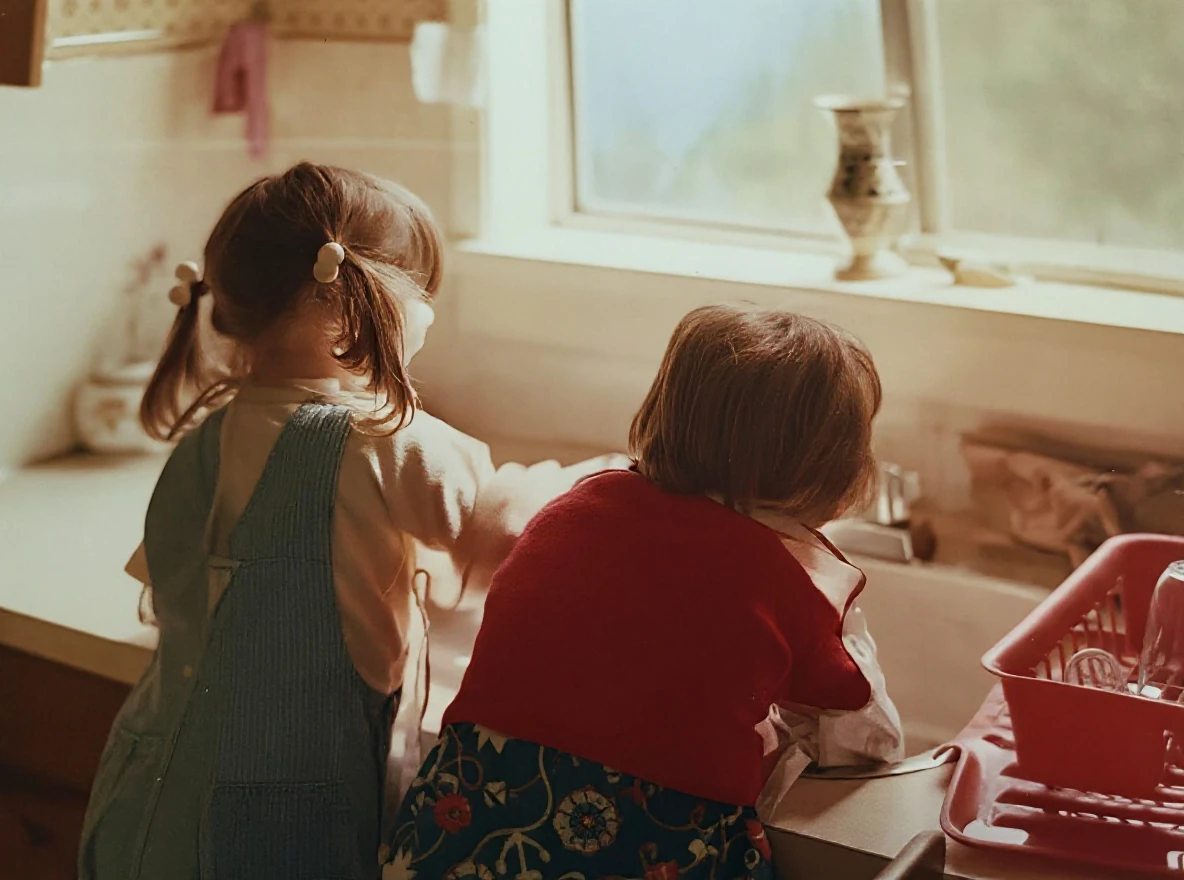
Warm-tinted kitchen photograph · Real customer example
A strong orange-red cast and visible print texture obscure this photograph of two children at a kitchen sink. The AI result reduces the warm cast and makes hair, clothing and the window frame appear clearer; the new colors and fine textures are an AI interpretation.
What to check: The colors and fabric textures are inferred. They may differ from the original scene.
Published with permission. Full framing retained; original and result may have different proportions. Reviewed September 10, 2026.
See the reviewed gallery and more damage types →The colors and fabric textures in this selected ImageRestoreAI result are inferred and may differ from the scene. A more balanced-looking photograph does not prove that the clothing or room colors are correct. This example is not a benchmark against MyHeritage, Hotpot or VanceAI.
There is an especially important distinction for a faded color print: it already carries some color information. Decide whether you want to correct that record or create a fresh interpretation. Keep the original scan and consult the faded-color restoration guide before approving a substantially changed palette.
Manual correction: when a particular color matters
If you have a reference showing a blue dress but every generated version makes it brown, trying another global colorization may not solve the actual problem. A manual workflow can isolate the dress, adjust it and leave approved areas alone. That control requires either editing work or a clear brief to a restorer.
Specify the reference, the area to change, the parts to preserve and the proof you want to approve. Ask what revisions and file formats are included. We have not priced a manual service here. Even careful manual work cannot establish an unknown original color without evidence; a chosen palette should be labeled as an interpretation.
Before leaving MyHeritage, check what you already have
MyHeritage's current Photo subscription documentation includes In Color and distinguishes it from repair and enhancement. Its plan overview also covers broader subscriptions. Check your account and renewal offer before buying another service; we do not have a verified current price or universal free-colorization quota to quote.
If your objection is one poor color result, first identify whether it is a boundary error, a wrong reference color or unwanted facial reconstruction. Each calls for a different remedy. Switching subscriptions without defining the problem can simply produce another unacceptable version.
A color preview checklist you can actually use
- Preserve the source. Keep the full scan, its caption and an untouched copy. Use the same source when comparing your own attempts.
- Inspect faces at a useful size. Check whether color or reconstruction changes the expression, apparent age or recognizable features.
- Trace object boundaries. Look for skin color in a collar, background color in hair, or one garment changing hue across a fold.
- Check known colors. Compare only against reliable references; record unknown colors as interpretations.
- Look beyond saturation. A vivid output can hide poor edge handling or changed texture. Review hands, jewelry, text and the full frame.
- Check delivery before paying. Confirm the current charge, subscription terms if any, downloadable dimensions and usage permissions. A preview does not prove details it cannot display.
For photographs with historical clothing, the military restoration guide explains why generated insignia and uniform colors are not identification evidence. For a family collection, use the family photo workflow to keep originals and labeled interpretations together.
You can try ImageRestoreAI's free preview if restoration is part of your brief. Approve the visible changes before deciding whether to buy a download.
Sources checked September 16, 2026: the linked official product, pricing and subscription pages. Recommendations are based on workflow fit, with no measured competitor benchmark, speed claim, privacy comparison or historical-color guarantee.
Ready to try it yourself?
Upload your photo for a free preview. Compare faces, colors and detail before purchasing.
Upload Your Photo To Restore NOW – FREE Preview
Drag & drop or click to select • JPG, PNG, WebP, HEIC
FREE Preview • Review your result before purchasing